
How to Read a Ticket Activity Timeline
Every ticket keeps a log of what happened to it: who created it, who moved it between stages, who it was assigned to and when. Learn where to find that log, how to read each entry, and how to use it to check a handover.
Also searched as: How to Read a Ticket Activity Timeline, What gets logged, Open the board and click the ticket, Switch to the Activity Log tab, Read the entries newest first, Scroll back for older activity, Using the log to check a handover, Read, Ticket, Activity, Timeline
Every ticket on a CRM board keeps its own record of what happened to it. The Activity Log tab shows that record: who created the ticket, who moved it from one stage to another, who it was assigned to, and what time each of those things happened.
It is the quickest way to answer "who changed this, and when?" — useful when a ticket has passed between teammates, when a customer disputes a status, or when you are picking up someone else's work after a shift change.
🕓 The Activity Log only covers the ticket's own lifetime — from the moment it was created to the moment it was resolved. Anything that happened in that conversation before the ticket existed, or after it was resolved, will not appear here.
What gets logged
The log records events, not conversation. Ordinary messages you and the customer sent live under Chat History instead. The entries you will see are:
- Ticket created — "@name created this task".
- Stage changed — "@name changed ticket status", followed by a second line showing the stage it came from, an arrow, and the stage it moved to, each in that stage's own colour.
- Ticket updated — "Ticket updated by @name". This is what you see when the ticket was edited without moving stage, for example when a property was changed. There is no from-to line on these, because the stage did not change.
- Assignee changed — "@name assigned this chat to @teammate", or "@name unassigned this conversation" when the ticket was handed back to the pool.
- Channel events — anything WhatsApp itself reported during the ticket's lifetime: "WhatsApp Call" and "WhatsApp Call Ended" for calls, plus group changes such as a group being renamed or someone being removed from it.
ℹ️ Notes are not in the Activity Log. They have their own tab next to it, so that a private comment from a teammate never gets mixed up with a record of what the system did.
Step-by-step
Step 1 — Open the board and click the ticket
Go to CRM in the left-hand menu and open the board the ticket lives on. Click anywhere on the ticket card to open it. The ticket opens as a full-width panel over the board.
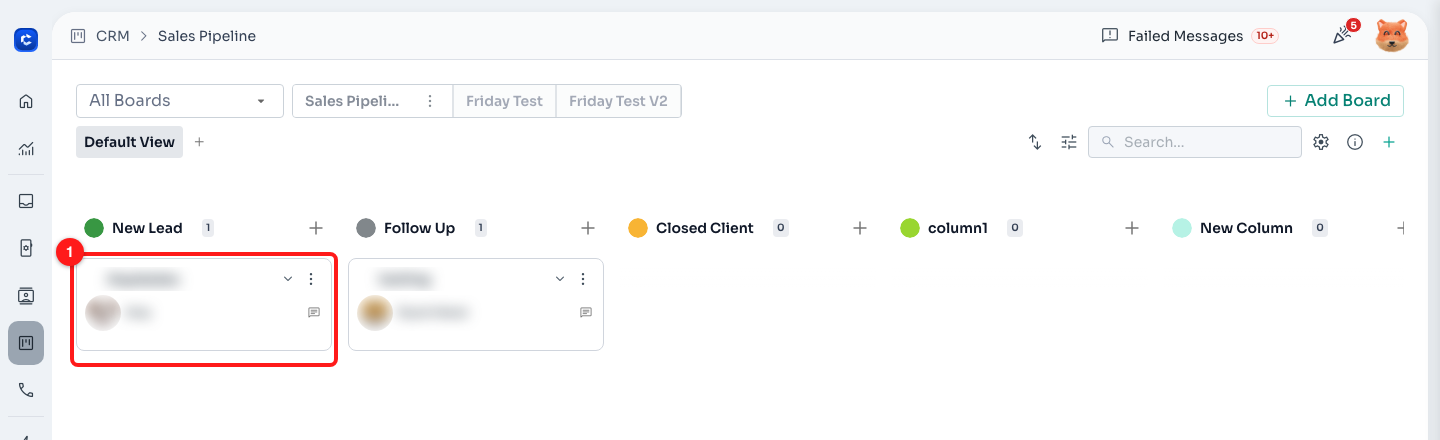
Step 1 — click the ticket card on the board (1).
Step 2 — Switch to the Activity Log tab
The ticket opens on Overview. Along the top you have Overview, Call History, Activity Log, Notes and Payments. Click Activity Log.

Step 2 — the Activity Log tab in the ticket's tab strip (2).
ℹ️ The Payments tab is only shown to ChatDaddy administrators, so most teams will see four tabs rather than five.
Step 3 — Read the entries newest first
The log is ordered with the most recent event at the top, which is the opposite of the Chat History tab. Each entry is one line describing what happened, with the time and date underneath it — for example "6:07 PM, Thu Aug 27 2026". Names are shown as coloured mentions, so you can see at a glance who did what.
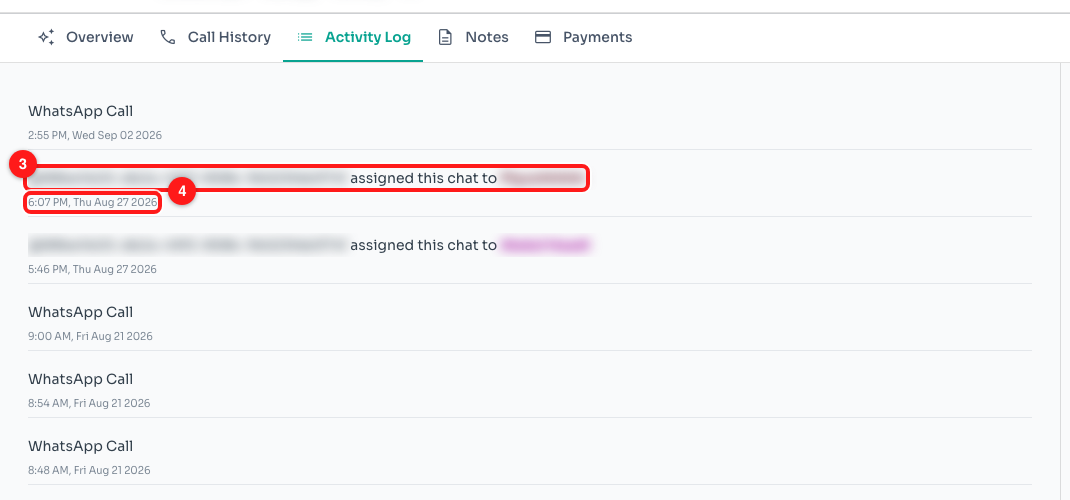
Step 3 — the description of the event (3) and the exact time it happened (4).
ℹ️ A stage change adds a second line to its entry: the stage the ticket left, an arrow, and the stage it landed in, each in that stage's own colour. Read those in order and you have the ticket's whole route through the board.
Step 4 — Scroll back for older activity
The log loads the most recent entries first and fetches more as you scroll down, so keep scrolling to reach the oldest ones. On a busy ticket this is where the original handovers are.
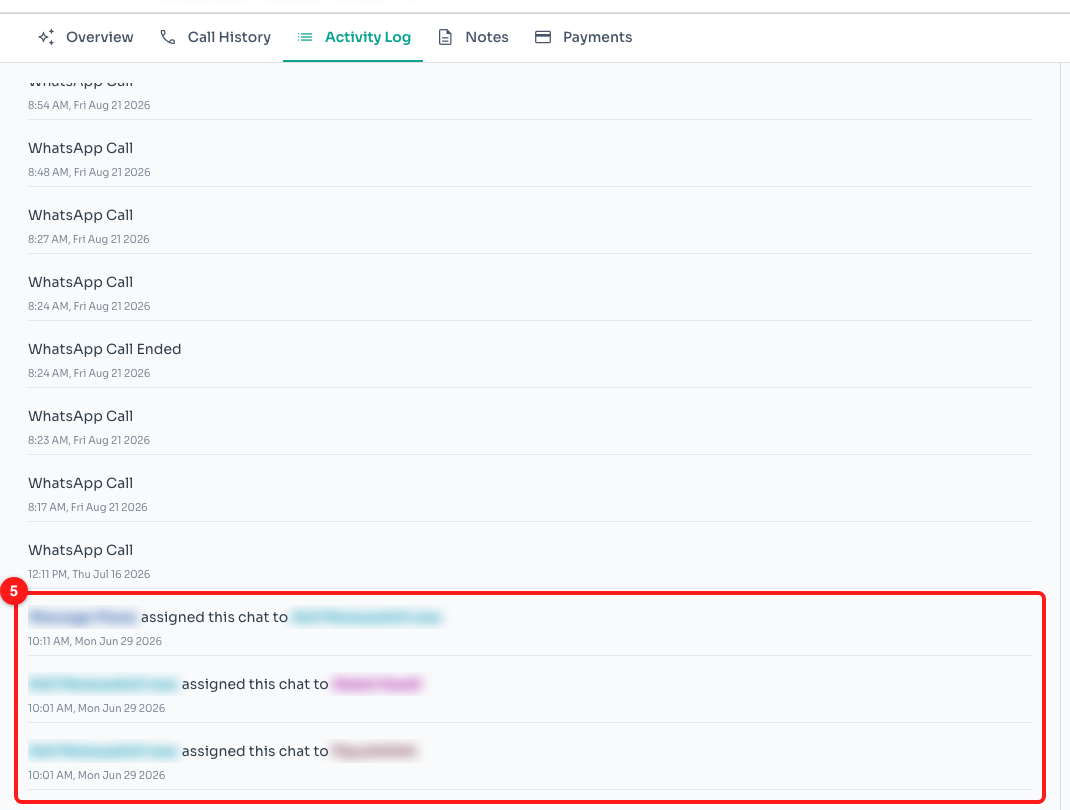
Step 4 — scrolling to the bottom of the feed reaches the oldest entries (5).
Using the log to check a handover
When a ticket has moved between teammates and you need to know whether it was handled properly, read the log from the bottom up:
- Scroll to the oldest entry you can reach. That is the start of the ticket's life as the log has it, and it tells you roughly how long the ticket has been open.
- Follow each assignee change in order. Every handover names both the person who made the change and the teammate who received the ticket.
- Check the stage changes against the times. A ticket that jumped straight to a late stage minutes after being created was probably moved in bulk rather than worked on.
- Compare the last entry with the ticket's current stage. If they disagree, the ticket was resolved and the log stopped at that point.
Frequently asked questions
The Activity Log tab is empty.
That means nothing has been logged inside this ticket's lifetime yet — the tab shows a blank panel rather than a message when there is nothing to list. A ticket that was created a moment ago and has not been moved or reassigned will look like this. Check the Chat History tab instead to see the conversation itself.
Why can I not see something that I know happened?
Two reasons cover almost every case. Either it happened outside the ticket's lifetime — the log starts when the ticket was created and stops when it was resolved — or it was an ordinary message rather than an event, in which case it is under Chat History.
Can I edit or delete an entry?
No. The Activity Log is a record of what happened and cannot be changed by anyone on your team, which is what makes it usable as evidence when two people remember a handover differently.
An entry says "Ticket updated" with no stage change. What changed?
Something on the ticket other than its stage — a property, for example. ChatDaddy records that the ticket was updated and who did it, but it does not list the individual fields, so it shows the name without a from-to line.
An entry shows a long string of letters and numbers instead of a name.
That is the internal id of whoever performed the action, shown because ChatDaddy could not match it to a current member of your team — most often because that person has since been removed, or because the action was performed by an automation rather than a person. The event itself, and its timestamp, are still correct.
The ticket will not open — I get "This screen hit an unexpected error".
This is a known fault on some tickets, not something you did wrong. The ticket card stays on the board and your stage counts stay correct, but the detail panel and its Activity Log cannot be opened while it is happening. Reloading the page is worth one try; if it keeps happening, use Report this issue on that screen so our engineers can see which ticket it was.
I opened the ticket and it says "This Ticket Has No Details".
The contact or the channel behind the ticket has been deleted, so there is nothing left to show — including the Activity Log. The ticket card stays on the board so your stage counts stay correct, but it can no longer be opened.