
The Email, URL and Phone Number Nodes
What the Email, URL and Phone Number steps in the message flow builder actually do, where to find each one, what to type into it, and the channel rules that decide whether a link or call button will be delivered at all.
Also searched as: The Email, URL and Phone Number Nodes, Add an Email step, Write the email, Point a button at a website or a phone number, Type the website address, Type the phone number, Read the warnings before you save, Troubleshooting and FAQs, Email, Phone, Number, Nodes
Most steps in a message flow send a WhatsApp message. Three of them do something else, and they are easy to mix up: Email sends an email instead of a message, and URL and Phone Number are not messages at all — they are what a button inside a message points at, so that tapping it opens a website or starts a call.
This article covers all three: where each one lives, what goes in it, and what stops it working. It is for anyone building flows on Automation → Message Flows.
⚠️ Link and call buttons are an official WhatsApp Business API feature. If the flow runs on any other channel, the message carrying them is not delivered at all — it is not sent without the buttons, it is simply not sent. The builder says as much under Warning on the message step.
Step-by-step
Step 1 — Add an Email step
Open your flow and click the + at the top of the small toolbar on the left of the canvas. The Add New Node window lists everything you can add; Email is the second one, described as “Send an email to the contact in this step.” You can also pick Email from any Choose Next Step dropdown, which connects it to the step you started from.
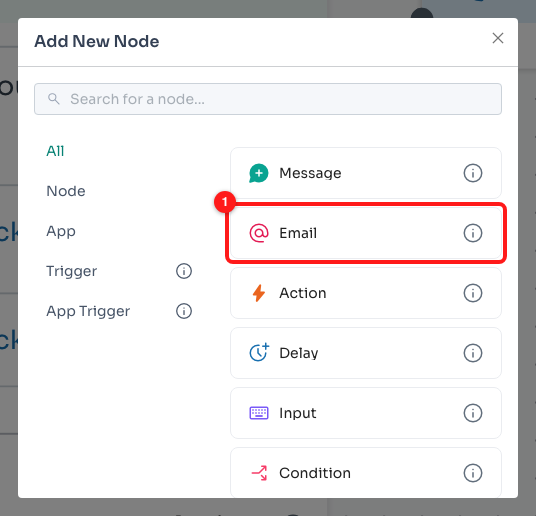
Step 1 — the Add New Node window. Email (1) sits with the ordinary message steps; hover the ⓘ next to any row to read what it does.
Step 2 — Write the email
An email step has three things to fill in. Select Channel offers your connected email channels only — WhatsApp channels are not in the list. Then comes Subject, and then Body, which is the email itself and takes variables the same way a message does: type { to see what is available.
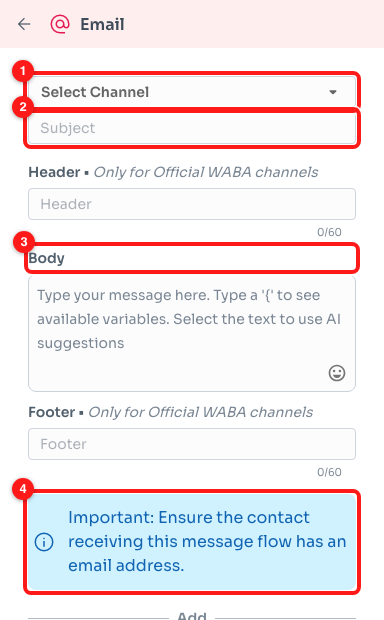
Step 2 — the email step: the channel it is sent from (1), the subject line (2), the body (3) and the reminder about the recipient (4).
Two things surprise people here. There is no To box — the email goes to the address on the contact’s own record, which is what the blue notice is warning you about: a contact with no email address simply receives nothing. And the Header and Footer boxes are marked Only for Official WABA channels; they belong to WhatsApp messages, so for an email put everything in the body.
📮 If the channel list is empty you will see “No email channels found” and a Connect Channel button. Connect an email channel first — the step cannot send anything until one is selected.
Step 3 — Point a button at a website or a phone number
URL and Phone Number are not in the Add New Node window, and that is not a bug — they only ever hang off a button. Open the message step, click Add Button → Button, and a button called Click Me appears. Underneath it is a Choose Next Step dropdown; open that and URL and Phone Number are in the list alongside the ordinary steps.
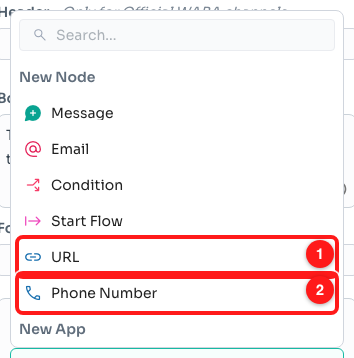
Step 3 — a button’s next step. URL (1) makes the button open a website; Phone Number (2) makes it start a call.
A button does one or the other. Once it is pointed at a URL or a phone number it carries that address instead of a next step, so it cannot also move the customer on to another part of the flow. If you need both, use two buttons.
Step 4 — Type the website address
Choosing URL creates a small step with one box in it. Type the full address, including https:// — the placeholder shows the shape it expects. The address is saved when you click away from the box, so click somewhere else in the panel before you move on.
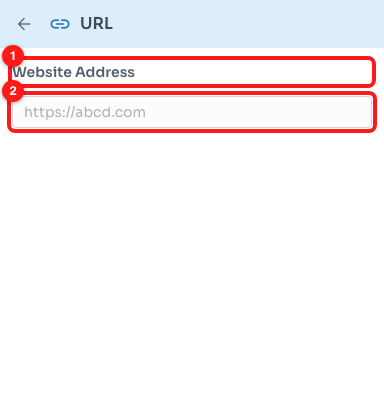
Step 4 — the URL step: the Website Address label (1) and the box you type into (2).
Step 5 — Type the phone number
The Phone Number step works the same way, with a country flag in front of the box. Pick the country first, then type the rest of the number in digits — no spaces, brackets or dashes. As with the address, it is saved when you click away. On the customer’s phone the button opens their dialler with this number ready to call.
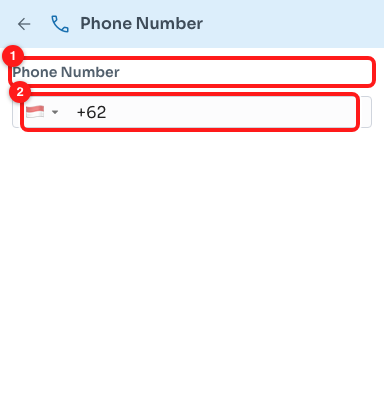
Step 5 — the Phone Number step: the label (1) and the country picker with the number beside it (2).
Step 6 — Read the warnings before you save
Go back to the message step and click the red Warning link near the bottom of the panel. The banners underneath are the rules that decide whether this message is deliverable, and the third one is the one that matters here: link and call buttons are official WhatsApp Business API only.
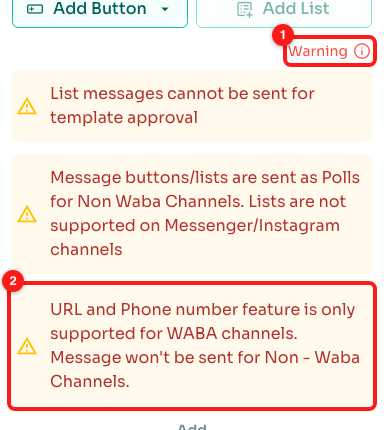
Step 6 — the Warning link (1) opens the banners; the last one (2) is the rule for URL and Phone Number buttons.
While you are there, the other limits on the same panel are worth knowing: a message can carry three buttons at most, it can have buttons or a list but not both, and every button label must be unique and no longer than 20 characters.
Troubleshooting and FAQs
I want to ask the customer for their email address or phone number. Is that these nodes?
No — these three send things, they do not ask for anything. To ask a question and keep the answer, add an Input step (“Ask a question and wait for a reply from the contact”) and use Save Reply to Custom Field so the answer is stored against the contact. For a phone number there is also a shortcut: on a message step, Add Button → Request Phone Number asks the customer to share the number WhatsApp already holds. WhatsApp fixes that button’s label, you can only have one per message, and it cannot lead on to another step.
I cannot find URL or Phone Number in the Add New Node window.
They are not there on purpose. Both only make sense attached to a button, so they appear only in a button’s Choose Next Step dropdown. Add a button to a message step first and they will be in the list.
The message with the link button was never delivered.
Check which channel the flow ran on. Link and call buttons are supported on official WhatsApp Business API channels only; on any other channel the message is not sent at all. Either move the flow to a WABA channel, or replace the button with the address written out in the message text.
The flow is suddenly waiting for template approval.
That is expected. A message carrying a URL button, a call button or a Request Phone Number button always has to be approved before it can be sent on an official channel — adding one to an approved flow sends it back for approval. Nothing is wrong; it just has to be reviewed again.
The address or number I typed was not kept.
Both boxes save when you click away from them, not as you type. If you type an address and immediately click another step on the canvas, the box may never lose focus and the value is lost. Click somewhere else in the panel first, then move on — the step on the canvas should show what you typed.
Can one button open a link and carry on with the flow?
No. A button has one destination: either an address to open, or the next step in the flow. If you need both, add a second button — you can have up to three on one message.
The email step says “No email channels found”.
The dropdown only shows connected, working email channels, and there are none on this workspace yet. Use Connect Channel in the dropdown, or set one up on the Channels page, and then come back and select it. Connecting a channel can need credits — if your balance is empty you will be shown the top-up window instead.
Nobody received the email.
The email is addressed to the contact, not typed into the step, so the first thing to check is whether those contacts have an email address on their record. Contacts collected from WhatsApp usually do not, unless you asked for one earlier in the flow or imported it. After that, check that the email channel chosen in the step is still connected.