
The Template Errors That Stop a Flow From Sending
Six WhatsApp errors have nothing to do with your credit, your contacts or your internet — they are Meta refusing the message because of the template behind it. Learn to recognise each card, what it actually means, and the one fix that clears it.
Also searched as: The Template Errors That Stop a Flow From Sending, Where these errors appear, How to read the card, The six errors, Approved template required, Customer must message first, Template needs an attachment, Template not found, Buttons need a template, Variable media needs an example, Step-by-step: clearing a template error, Check the template status on the flow, Open the flow and fix the cause, Submit and wait for Approved, Template
On a WhatsApp Business API channel, most of what you send is a template — a message Meta has seen and approved in advance. When something is wrong with that template, Meta refuses the send outright, and ChatDaddy shows you a card explaining which of six things went wrong.
These six are worth knowing on sight because they look like ordinary failures but behave differently: retrying does not help, and the fix is almost always in the message flow, not in the chat.
🚧 None of these six errors is caused by your credit balance, your plan or the contact. They are all Meta rejecting the template — so Retry sends the same message and it fails again. Fix the flow first, then retry.
Where these errors appear
You will meet them in two places:
- In the Inbox, under the message that failed to send — a red card with the reason and, when the message came from an automation, a button that takes you to the flow behind it.
- On a message flow's Recipients list (Automation → Message Flows, then open a flow and click its Recipients count). A step that failed for a contact shows Failed with a small info icon; hover it and the same explanation appears.
How to read the card
Every one of the six follows the same shape, so once you can read one you can read all of them.
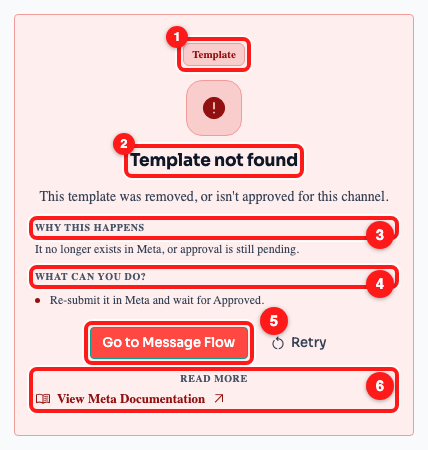
The card as it appears in the Inbox: the category chip (1), the plain-language title (2), why it happened (3), what to do about it (4), Go to Message Flow (5) and the link to Meta's own documentation (6).
- The category chip — Template for a problem with the template itself, Messaging for a problem with the conversation. There is no Meta error number on these six, because Meta does not give them one.
- The title — what went wrong, in one line.
- Why this happens — the cause. This is the part that stops the same error catching you out next week.
- What can you do — the fix, usually a single step.
- Go to Message Flow — only shown when the failed message came from an automation. It opens that exact flow with the Submit for Approval panel already open, on the channel that failed.
- View Meta Documentation — Meta's own error reference, for when you need to quote it to someone.
The six errors
Approved template required
You tried to open a new conversation with free-form text. On WhatsApp Business API you cannot do that — Meta only lets an approved template start a chat. This is the most common of the six, and it usually appears when a flow that used to run inside an active conversation starts reaching cold contacts.
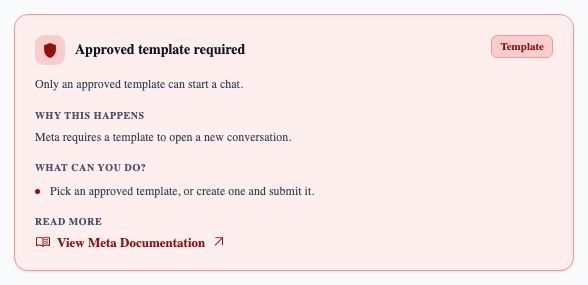
“Approved template required” — pick an approved template, or create one and submit it for approval.
Customer must message first
The same rule from the other direction: this channel can only reply. Nothing you send will be delivered until the contact writes to you. There is no setting to change and nothing to resubmit — the card says “wait for their first message” because that genuinely is the only option.
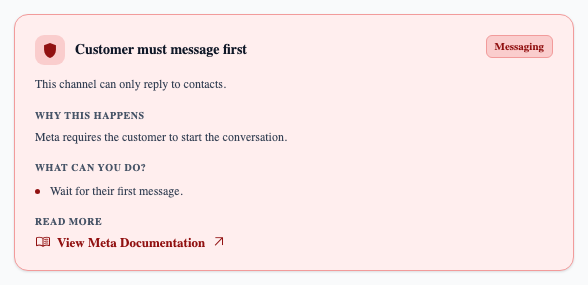
“Customer must message first” — the chip reads Messaging, not Template, because the template is fine; the conversation has not started.
Template needs an attachment
The template was approved with a media header — an image, video or document at the top — so Meta expects a file every time it is sent, and the flow did not supply one. Open the message node in your flow, attach the media, and the next send goes through. You do not need to resubmit the template for this.
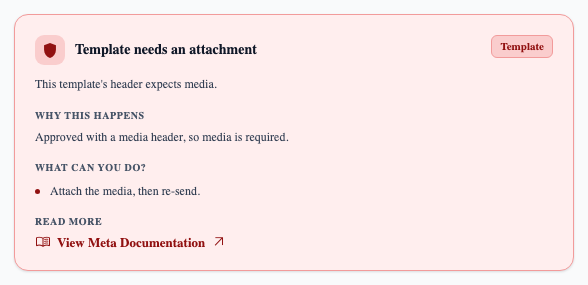
“Template needs an attachment” — the header expects media, so media is required.
Template not found
ChatDaddy asked Meta for a template that Meta does not have. Either it was deleted in Meta Business Manager, or it was never approved for this channel — templates are approved per WhatsApp Business account, so a template that works on one number can be missing on another. It also appears while a freshly submitted template is still pending review.
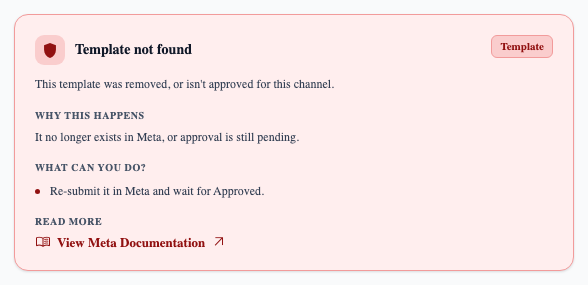
“Template not found” — removed in Meta, or approval for this channel is still pending.
Buttons need a template
Your message has a link button or a call button on it, and Meta does not allow either in a free-form message — only inside an approved template. Move those buttons into a template and submit it. Plain reply buttons are not affected; it is specifically the ones that open a URL or dial a number.
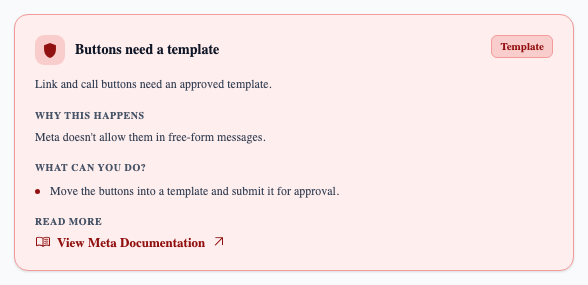
“Buttons need a template” — link and call buttons only work inside an approved template.
Variable media needs an example
The rarest of the six, and the only one that is a submission problem rather than a send problem. The template has a media placeholder that changes per contact, and Meta requires a sample file to be attached when the template is submitted, so its reviewers can see what customers will receive. Add a sample and submit the template again.
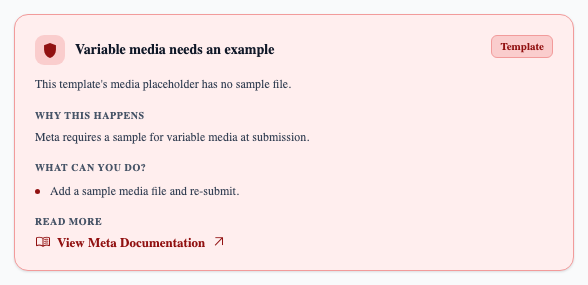
“Variable media needs an example” — Meta wants a sample file at submission time.
Step-by-step: clearing a template error
Step 1 — Check the template status on the flow
Go to Automation → Message Flows. The Template Status column tells you what Meta currently thinks of each flow's template: Approved, Pending, Rejected, Not Submitted, or Approved (Stale) when the flow has been edited since it was last approved. Anything other than Approved will produce one of the errors above.
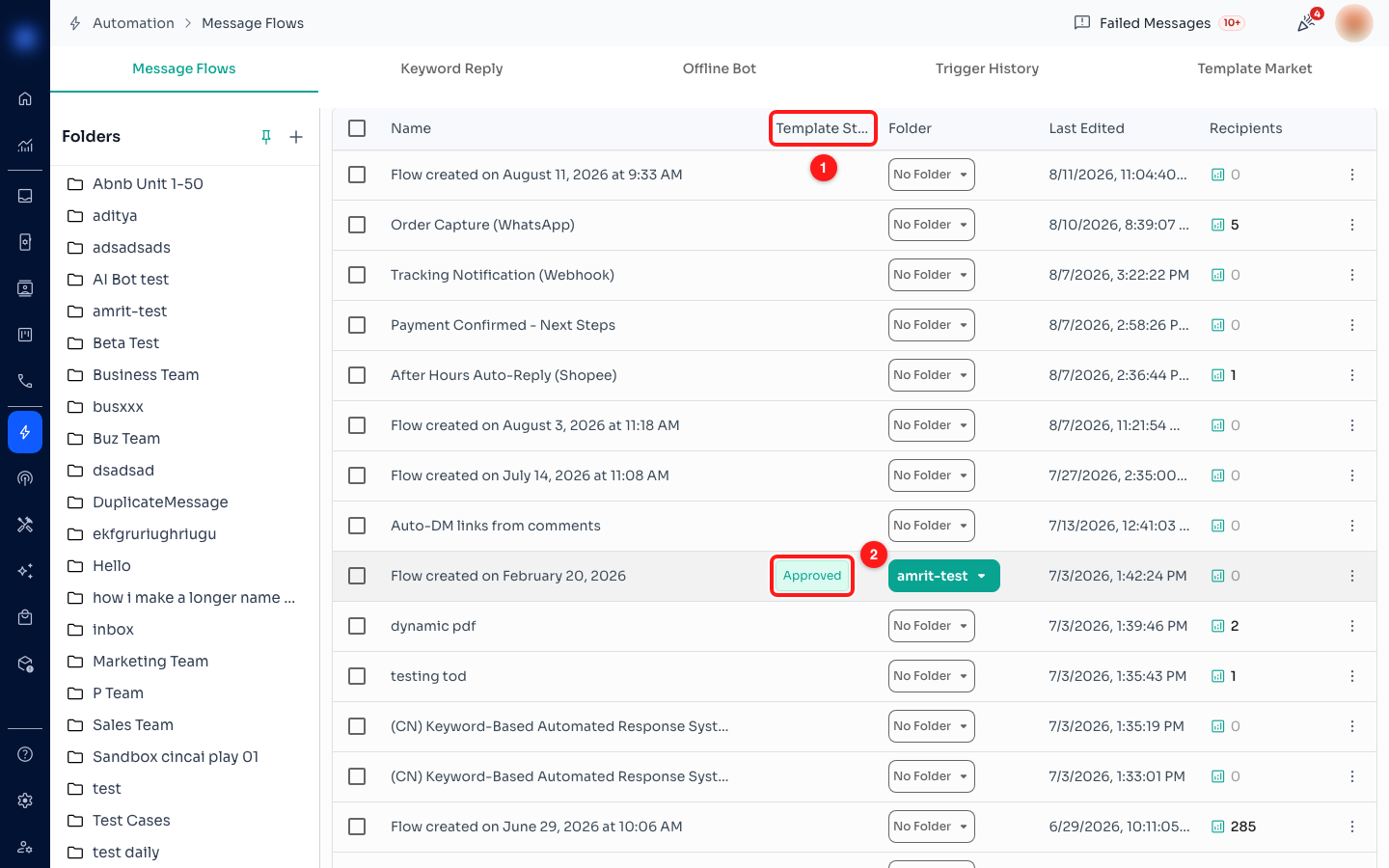
Step 1 — the Template Status column (1) and an approved flow (2). Flows with no template attached leave the column empty.
Step 2 — Open the flow and fix the cause
Click into the flow. If you arrived from a failed message with Go to Message Flow, ChatDaddy takes you straight to the node that failed and opens the approval panel for you. Then fix whatever the card named: attach the missing media, move the buttons into a template, add the sample file, or pick a template that is actually approved on that channel.
Step 3 — Submit and wait for Approved
Submit the template for approval, choosing the channel it needs to run on. The status becomes Pending while Meta reviews it — usually minutes, occasionally hours — and the flow can send again once it reads Approved. Retrying before that gives you the same error.
Frequently asked questions
Does a failed template send cost me anything?
No. Meta refuses the message before it is delivered, so there is nothing to charge for. A long run of these does not eat your balance — but it does mean the contacts in that flow never heard from you.
Why did this flow work last week and fail today?
Two usual reasons. Either the template was edited — editing a flow after approval marks it Approved (Stale) and Meta keeps serving the older approved wording until you resubmit — or the flow started reaching contacts who have not messaged you inside the last 24 hours, which turns a free-form step into one that needs a template.
I added the channel recently and every send fails with “Template not found”.
Templates are approved per WhatsApp Business account, not per team. A new channel starts with none of your existing approvals, so every flow pointing at it has to be submitted again for that channel.
Is there any way to skip template approval?
Only inside the 24-hour window. Once a contact messages you, you can reply freely for 24 hours without a template. Outside that window, and for any message that starts a conversation, Meta requires an approved template — this is Meta's rule, not a ChatDaddy setting.
The card has no error number. Is something missing?
No. Meta returns these six as plain sentences rather than numbered codes, so there is no number to show. That is why they carry a Template or Messaging chip instead of the #131047-style badge you see on other WhatsApp errors.