
What the Storage and Upload Incident Notices Mean
ChatDaddy shows a Service notice, Service warning or Service degraded dialog when our own storage is under strain. Learn what each one means, what keeps working during it, why it is never something to fix on your side, and how to close it.
Also searched as: What the Storage and Upload Incident Notices Mean, Check the badge to see how serious it is, Read “Why this happens” before you change anything, Close the notice in the way you actually mean, On a warning, expect uploads to be slower, Recognise a degraded platform by what is missing, Work around it while uploads are down, What keeps working, at every tier, Storage, Upload, Incident, Notices, Mean
Every so often a dialog appears over whatever page you are on, telling you that ChatDaddy's storage is filling up or that media uploads are failing. These are platform incident notices: we tell you our own infrastructure is under strain, in most cases before anything you do actually breaks.
There are three of them, and they escalate. This article covers what each one means, what carries on working, and what you can and cannot close. Everyone on the team sees the same notice — there is no permission or plan involved.
🛡️ The one thing to know: this is our storage, not yours. It is never your plan, your quota or anything you can upgrade, buy or delete your way out of. And we never remove your data to make room — when we run out of space we stop accepting new files instead.
Step-by-step
Step 1 — Check the badge to see how serious it is
The pill at the top of the dialog is the fastest thing to read, and the colour matches it: amber for Service notice, orange for Service warning, red for Service degraded. Under it, the title says what is happening and the line beneath that tells you whether anything is affected yet.
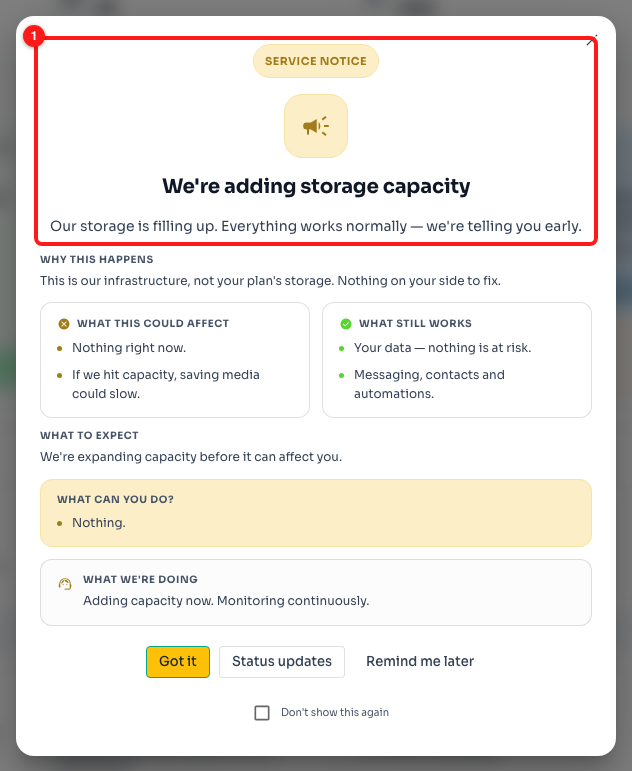
Step 1 — the severity badge, the title and the one-line summary, read as one block (1). This is a Service notice: nothing is affected yet.
- Service notice — “We're adding storage capacity.” Everything works normally. We are telling you early.
- Service warning — “Storage is running low on our side.” Nothing has failed, but saving media may be slower while we expand.
- Service degraded — “Media uploads are failing.” We have hit capacity, so new media cannot be saved right now.
Step 2 — Read “Why this happens” before you change anything
This one line exists to stop the most common misreading. “Storage is running low” sounds like a mailbox that is full, so people go looking for a plan to upgrade or files to delete. Neither would help — the storage under pressure is ours.
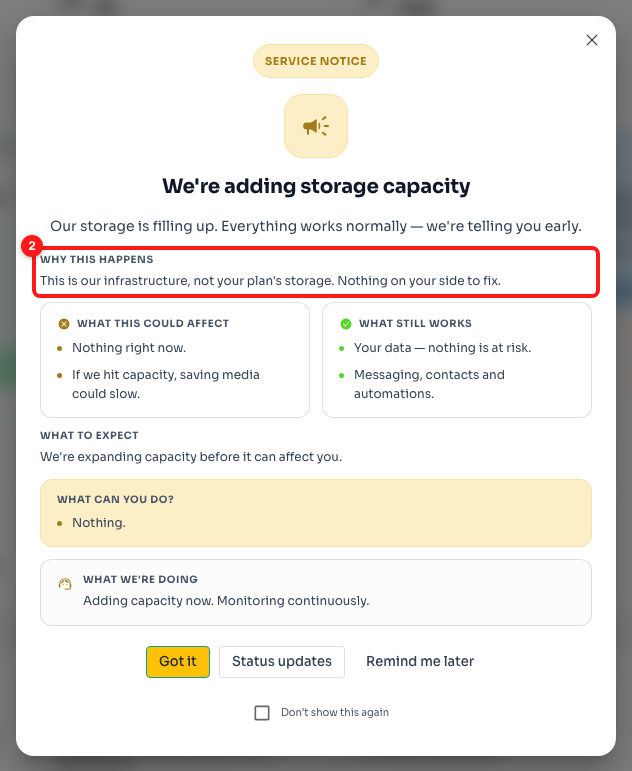
Step 2 — “Why this happens” (2) states plainly that this is our infrastructure and there is nothing on your side to fix.
💾 On a Service warning this line reads “Your account is not over any limit.” If you have genuinely run out of something on your own plan, ChatDaddy tells you that somewhere else entirely — never in one of these dialogs.
Step 3 — Close the notice in the way you actually mean
A notice and a warning can both be closed, and the three buttons at the bottom do genuinely different things. The ✕ in the top corner behaves the same as Got it.
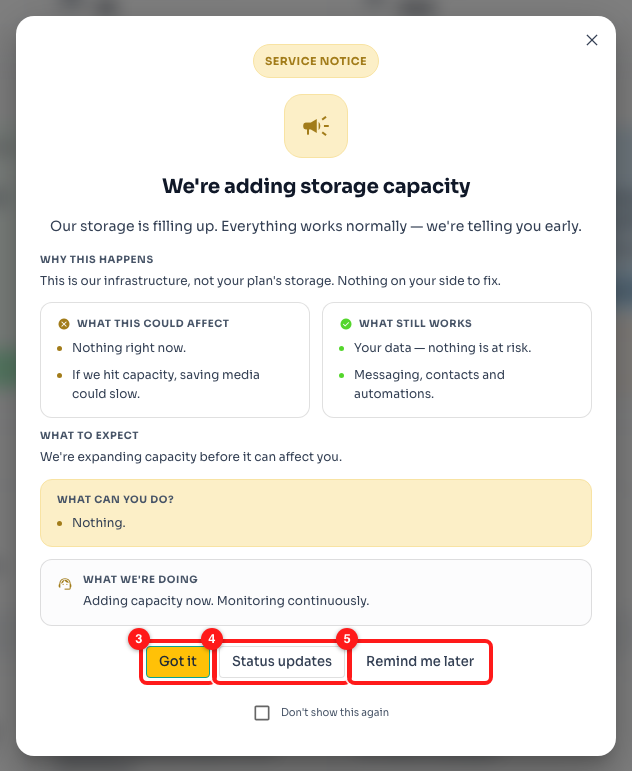
Step 3 — “Got it” closes it for this session (3), “Status updates” opens our status page (4), and “Remind me later” brings it back (5).
- Got it — closes the notice for this session. It comes back next time you sign in, unless the incident has cleared by then.
- Status updates — opens the ChatDaddy status page in a new tab. This is where progress on the incident is posted, so it is the button to use if you want to know how things are going. It only appears when a status page has been attached to the incident.
- Remind me later — also closes it for this session. The difference is that it deliberately ignores the tick box below, so it always comes back.
- Don't show this again — tick this before pressing Got it or ✕ and that particular incident will not be shown to you again on this browser.
ℹ️ Dismissing is remembered against that one incident, not against incident notices in general. A new incident later on is a new notice, and it will appear even if you ticked “Don't show this again” on the last one.
Step 4 — On a warning, expect uploads to be slower
A Service warning is the middle tier: still nothing lost, but the parts of ChatDaddy that write files may drag. The two panels split this cleanly — what might be affected on the left, what is definitely fine on the right.
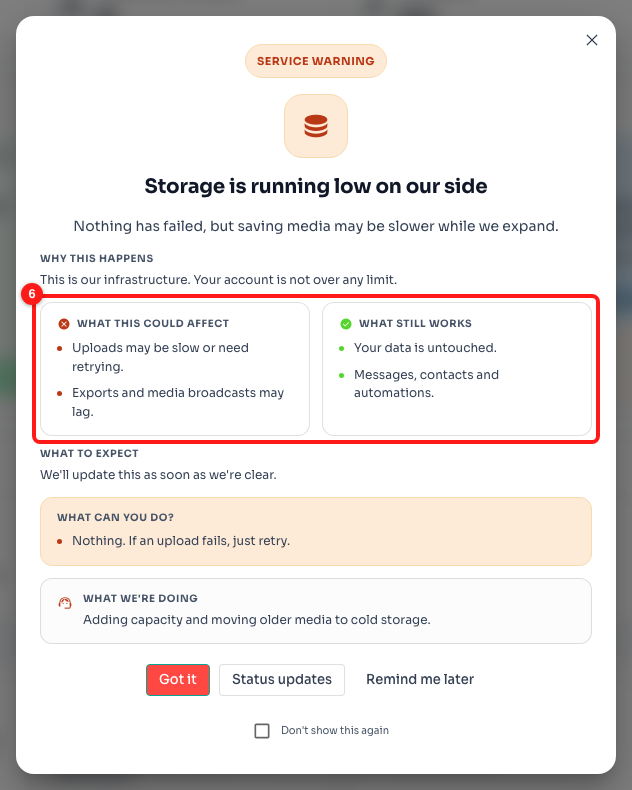
Step 4 — “What this could affect” against “What still works” (6). Your data, messages, contacts and automations sit on the safe side.
The advice on this card is simply “Nothing. If an upload fails, just retry.” Retrying is worth doing here, because during a warning the capacity is still there — it is just slow.
Step 5 — Recognise a degraded platform by what is missing
Service degraded is the only one you cannot close. There is no ✕, no Got it, no Remind me later and no tick box — just Status updates. That is on purpose: uploads are failing right now, and a notice you had clicked away could not explain why.
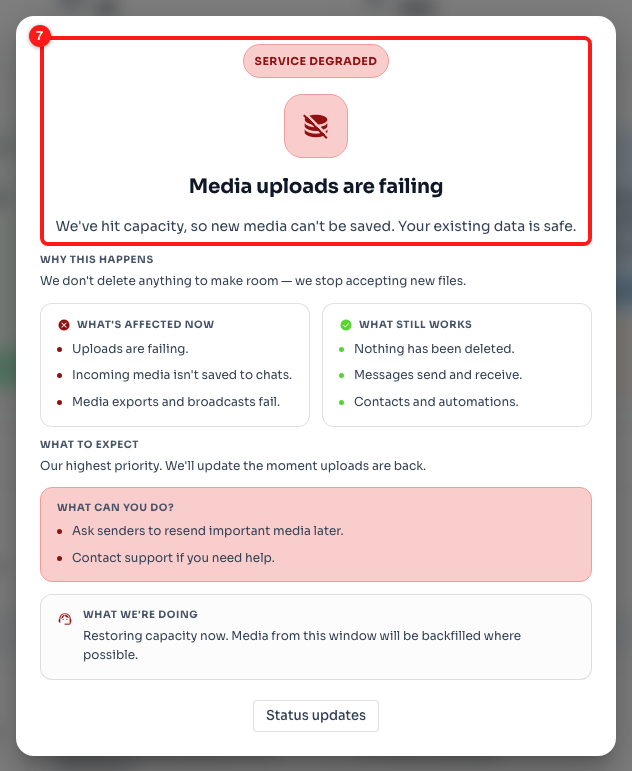
Step 5 — the red Service degraded header (7). Note the missing close button: this dialog stays until the incident clears.
✅ Even at this tier, nothing has been deleted, and messages still send and receive. What stops is new media being saved — uploads, incoming media attaching to chats, and media exports and broadcasts.
Step 6 — Work around it while uploads are down
The degraded card is the only one that asks anything of you, and it asks two small things. Underneath, What we're doing tells you where we are with it — including that media from this window will be backfilled where we can.
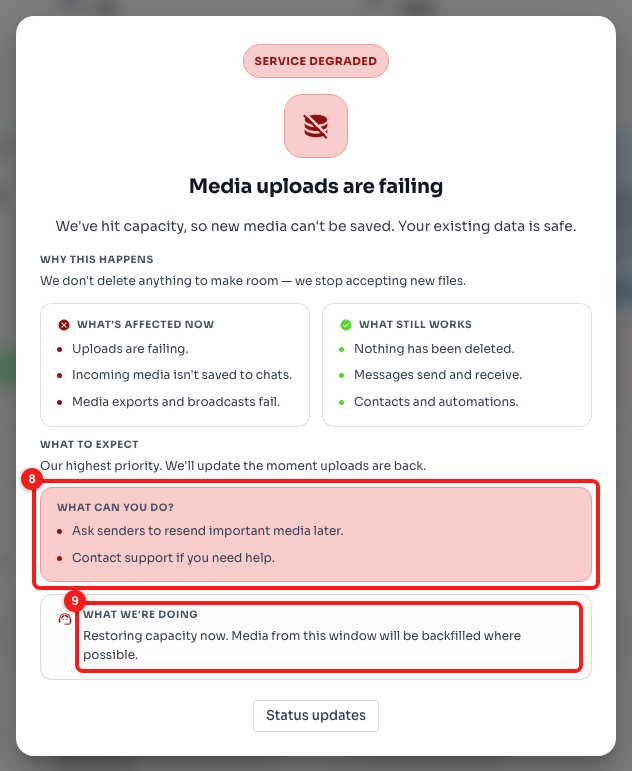
Step 6 — “What can you do?” lists the two workarounds (8), and “What we're doing” says where we are with the fix (9).
- Ask senders to resend important media later, once uploads are back.
- Carry on with text — messaging, contacts and automations are unaffected.
- Contact support if an upload you cannot postpone is blocked.
What keeps working, at every tier
Whichever notice you are looking at, all of the following are unaffected:
- Your existing data — nothing is deleted to free up space, at any tier.
- Sending and receiving text messages.
- Contacts, tags and custom fields.
- Message flows, keyword replies and other automations.
What varies is only media: at a notice nothing is affected, at a warning saving media may be slow, and at degraded new media cannot be saved.
Frequently asked questions
Do I need to upgrade my plan or delete files to fix this?
No, and neither would make any difference. The storage under pressure is ChatDaddy's own infrastructure, not your plan's allowance. There is nothing to buy, clear out or change on your side — every one of these cards says so in its “Why this happens” line.
Is any of my data at risk of being deleted?
No. We never delete customer data to make room. When we run out of space we stop accepting new files instead, which is exactly what the Service degraded notice is telling you. Nothing already in your account is touched.
How long will the incident last?
ChatDaddy does not put a countdown or an estimated time on these notices, because an ETA we could not keep would be worse than none. Each card tells you what to expect in general terms, and the Status updates button opens the status page, which is where progress is actually posted. That is the reliable place to check.
I cannot close the dialog. Is it stuck?
If the badge reads Service degraded, it is not stuck — that tier has no close button by design, because uploads really are failing while it is up. It disappears on its own once the incident clears. Notices and warnings, by contrast, all have a ✕ and a Got it button.
A notice appeared while I was in the middle of working. Why now?
ChatDaddy re-checks for an active incident every few minutes, so a notice can appear without you reloading the page — someone who has had a tab open all morning still deserves to know their uploads have started failing. For the same reason, a notice can vanish on its own once the incident is resolved.
I ticked “Don't show this again” but I am seeing a notice anyway.
That setting applies to the one specific incident you dismissed, and it is remembered in the browser you dismissed it in. A later, separate incident is a new notice and will still be shown. You will also see notices again in a different browser, on a different device, or after clearing your browser data.
My upload failed but I never saw one of these notices.
Then it is probably not a platform incident. A single upload can fail for its own reasons — the file being too large, or a connection problem between your browser and ChatDaddy. Check the file size limits, and see Fixing Connection Problems if other parts of the dashboard are also failing to load.
Is this the same as a server error card?
No, they are opposites. A server error card appears after a request has already failed, and replaces the screen you were trying to look at. An incident notice appears before anything of yours breaks, as a dialog over whatever page you are on. Server error cards are covered in Understanding Server Error Messages and Service Notices.