
Broadcast Sending Speed and Smart Timing Recommendations
Set how fast a broadcast goes out and what hours it may send in. Covers every speed option and its risk level, the estimated completion time, why some speeds are locked on lower WhatsApp tiers, and how the Smart Timing Recommendation picks its slots.
Also searched as: Broadcast Sending Speed and Smart Timing Recommendations, Where to find these settings, Open Advanced Settings, Check the estimated completion time, Choose a speed, Set the hours it may send in, Apply a Smart Timing Recommendation (optional), Warnings you may see next to Sending Speed, Broadcast, Sending, Speed, Smart, Timing, Recommendations
Every broadcast has a Sending Speed — how quickly ChatDaddy works through your recipient list — and a Broadcast Hour window that limits which hours of the day it may send in. Both live in the Advanced Settings section of the broadcast editor.
Speed matters most on WhatsApp Business API (WABA) channels. Sending faster than your number is rated for is the quickest way to have Meta throttle it or drop your quality rating, so each option is labelled with its risk level rather than left for you to guess.
🚦 If you are not sure, leave it on Normal (1 msgs/min). It is the default, it is marked Recommended, and it is safe on every account tier. Only move faster when you have a genuine reason and a healthy quality rating.
Where to find these settings
Go to Marketing → Broadcasts and click + Create, or open an existing broadcast that has not been sent yet. The editor is one long form with three numbered sections; both settings sit in section 3 Advanced Settings.
ℹ️ Sending Speed only appears once a channel is available for the broadcast. If the whole section looks empty, go back to 2 Settings and pick your Channel Type first.
Step-by-step
Step 1 — Open Advanced Settings
Scroll to 3 Advanced Settings. The Sending Speed block is the first thing in it, described as “Select a speed — each option shows its risk level and throughput.” The small ? next to the heading explains Meta's per-number limits if you hover it.
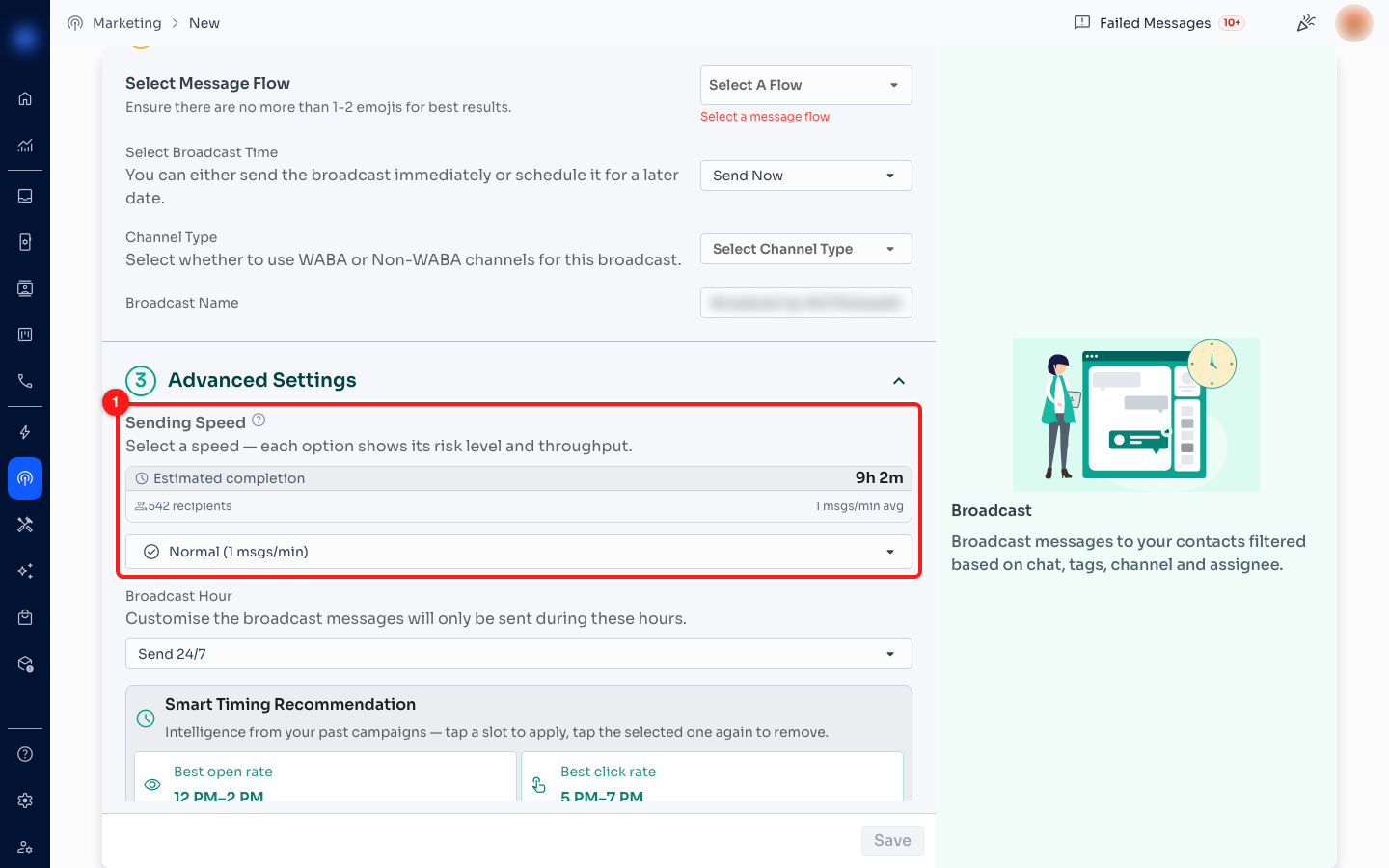
Step 1 — the Sending Speed block at the top of Advanced Settings (1).
Step 2 — Check the estimated completion time
Above the speed dropdown, ChatDaddy shows how long the broadcast will take at the speed you have chosen: the total on the right, and underneath it your recipient count and the average rate. It is simply recipients × the gap between messages, so in the example below 542 recipients at 1 message a minute comes to 9h 2m.
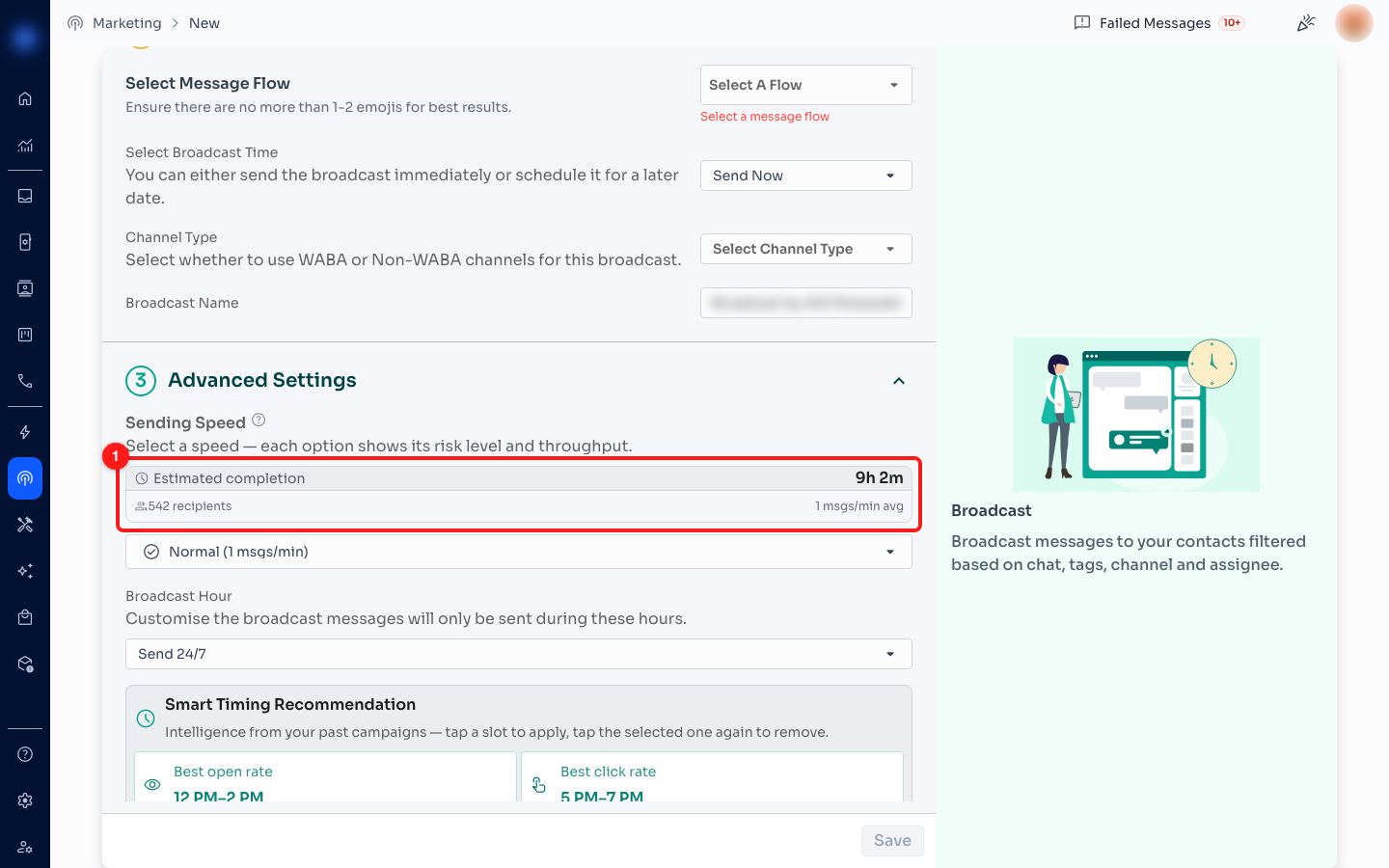
Step 2 — estimated completion, recipient count and average rate (1).
⏱️ This is the number to sanity-check before you send. A large list on a safe speed can easily run overnight — and if you also set a Broadcast Hour window, it will pause outside those hours and take longer still.
Step 3 — Choose a speed
Click the speed dropdown to see the options. Each row carries an icon, the throughput in brackets, a coloured risk chip on the right and a sentence saying who it suits. The faster options sit at the top.
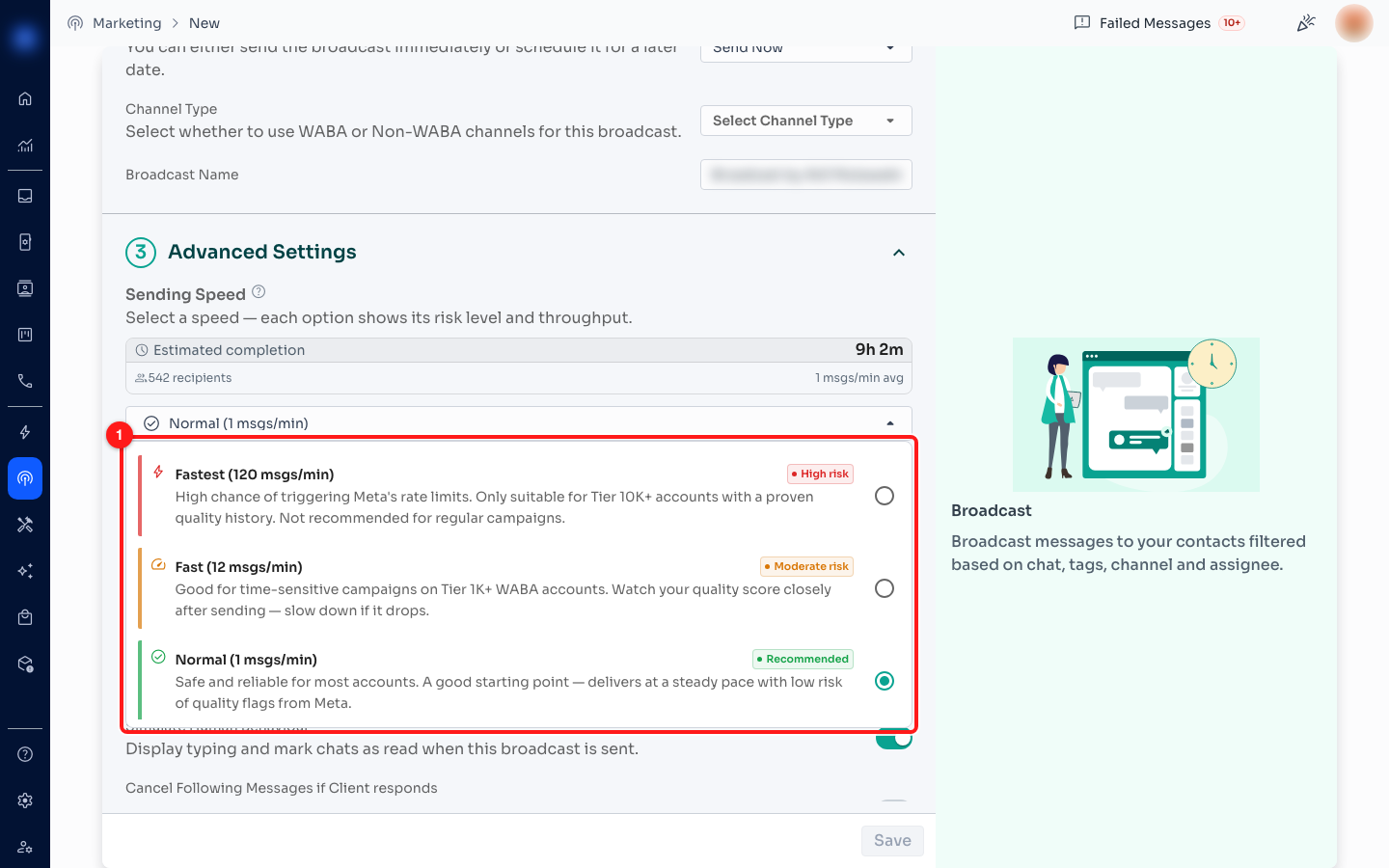
Step 3 — the fast end of the list, with the risk chip on each row (1). Normal is selected by default.
- Fastest (120 msgs/min) — High risk. High chance of triggering Meta's rate limits. Only for Tier 10K+ accounts with a proven quality history.
- Fast (12 msgs/min) — Moderate risk. Good for time-sensitive campaigns on Tier 1K+ WABA accounts. Watch your quality score closely afterwards.
- Normal (1 msgs/min) — Recommended. Safe and reliable for most accounts, and the default for every new broadcast.
Scroll the list down for the slower, safer end:
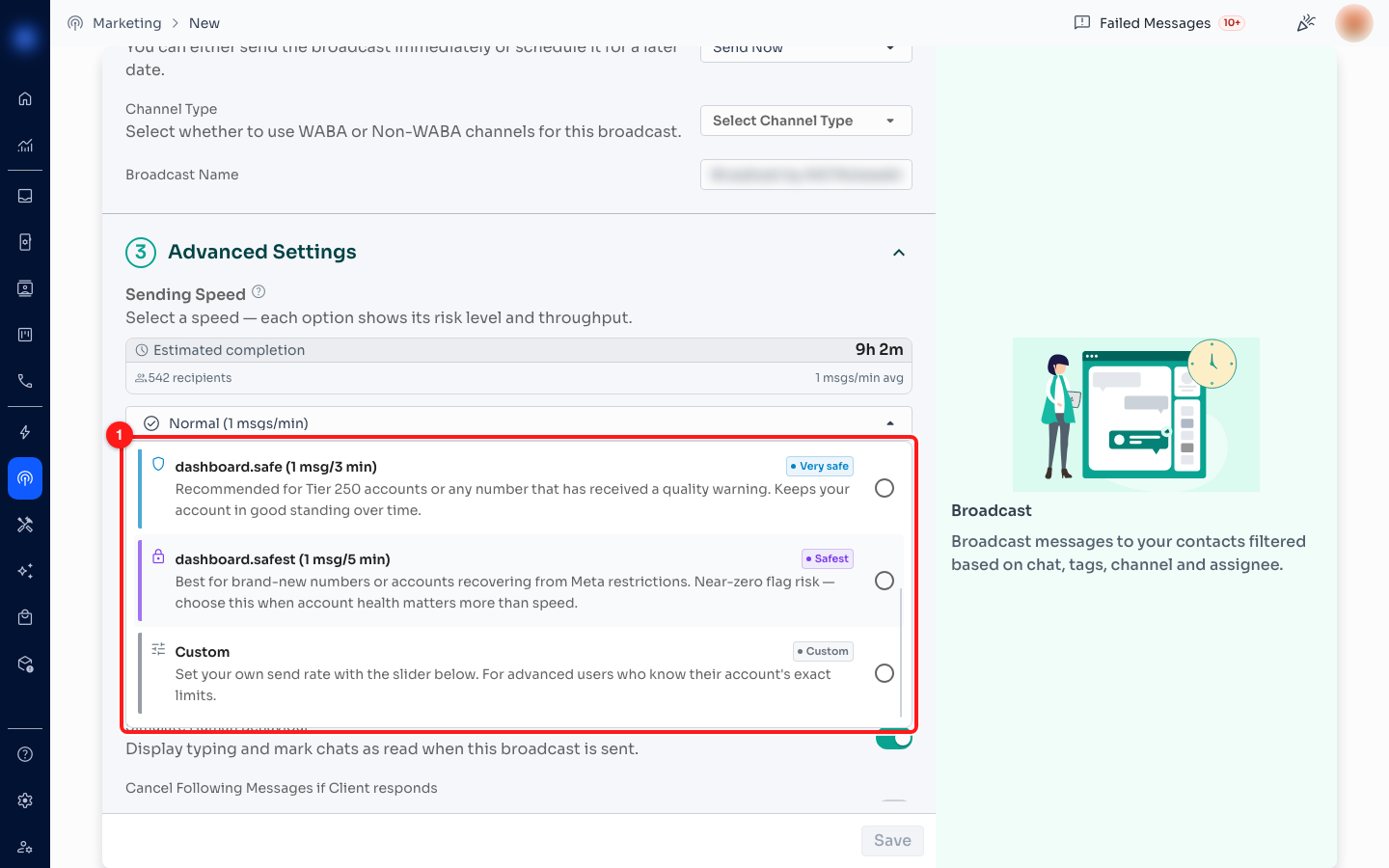
Step 3 — the safe end of the list: Safe, Safest and Custom (1).
- Safe (1 msg/3 min) — Very safe. For Tier 250 accounts, or any number that has had a quality warning.
- Safest (1 msg/5 min) — Safest. For brand-new numbers, or accounts recovering from Meta restrictions. Near-zero flag risk.
- Custom — sets your own rate with a slider that appears under the dropdown. For people who know their account's exact limits.
- WABA Max (480 msgs/min) — Extreme risk. Only offered when every selected channel is WABA and the account is Tier 10K or above. Enterprise throughput; use only with a consistently high quality score.
🔒 You will not always see all of these. On a Tier 250 number only Normal, Safe and Safest are offered; on Tier 1K and Tier 2K, Fastest and WABA Max are hidden. The options are filtered to what your channel is actually rated for.
Step 4 — Set the hours it may send in
Under Broadcast Hour, choose Send 24/7 to let the broadcast run straight through, or Send During Specific Hours to confine it to a window — useful for staying inside office hours or avoiding a time zone's small hours. Choosing the second option opens a start and end time picker, starting at 08:00–20:00.
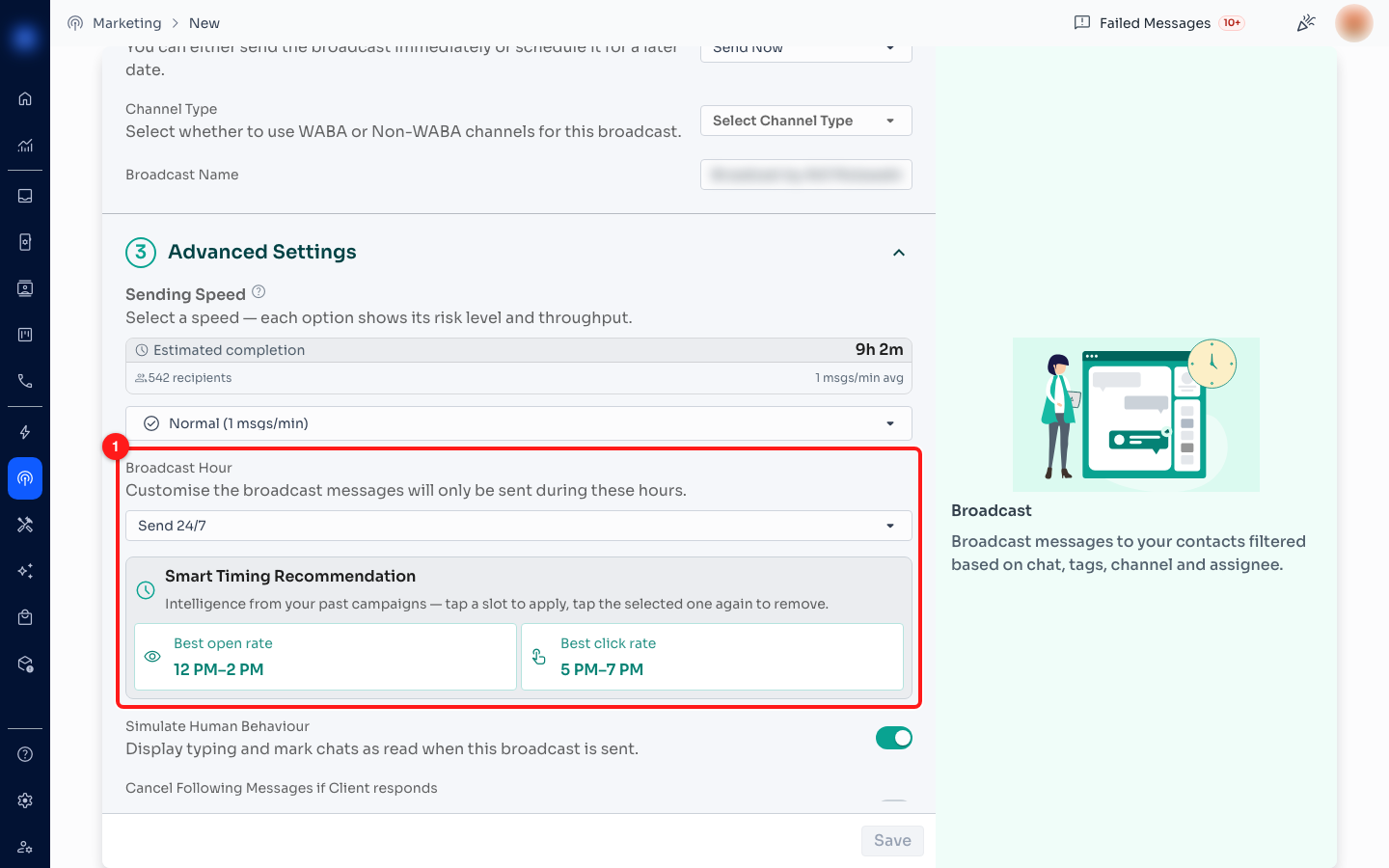
Step 4 — the Broadcast Hour dropdown and, below it, the Smart Timing card (1).
Step 5 — Apply a Smart Timing Recommendation (optional)
The Smart Timing Recommendation card suggests two-hour windows based on your own past campaigns — “Intelligence from your past campaigns — tap a slot to apply, tap the selected one again to remove.” Tap Best open rate or Best click rate and that window is filled in as your Broadcast Hour; tap the same one again to clear it and go back to sending 24/7.
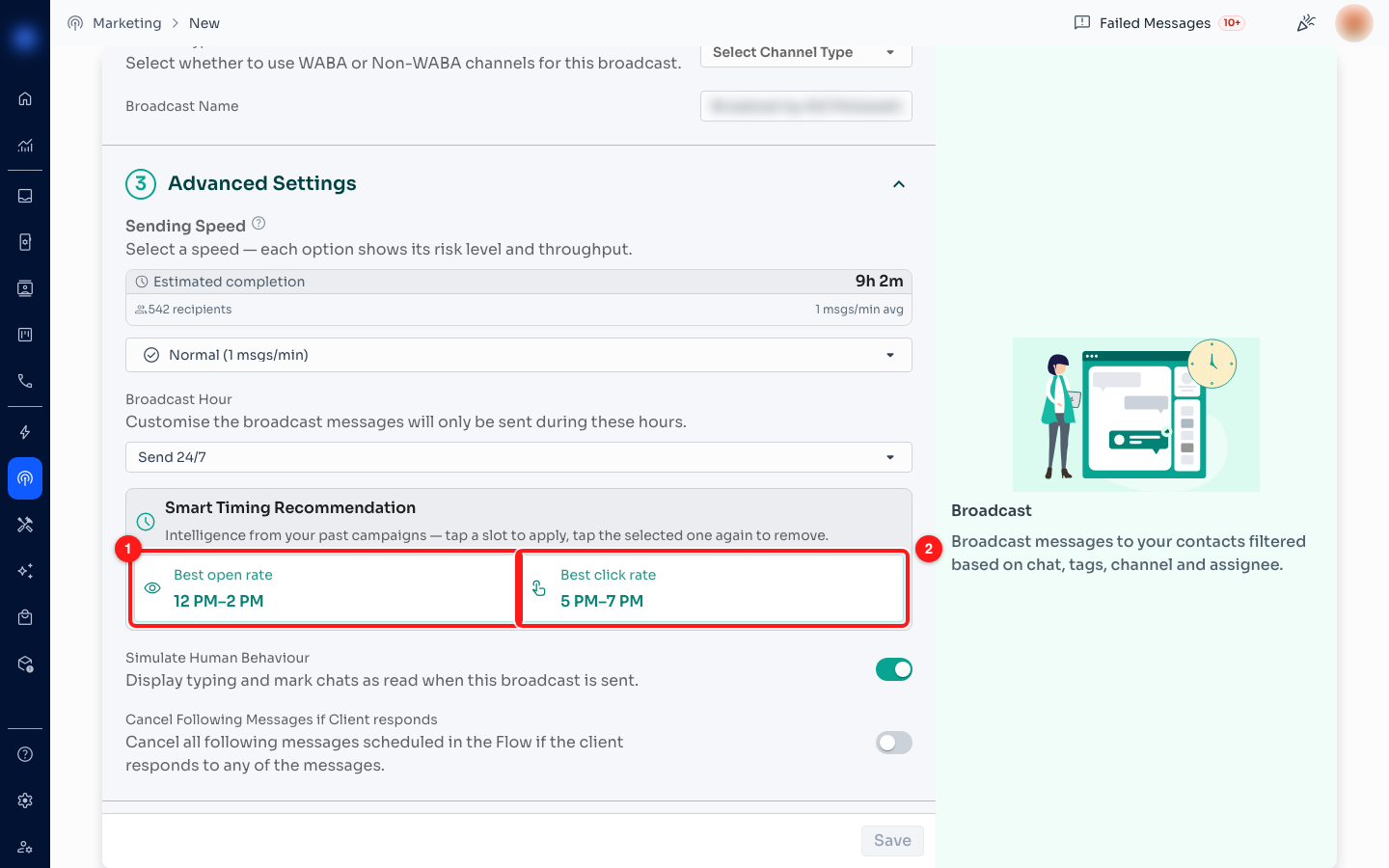
Step 5 — the Best open rate slot (1) and the Best click rate slot (2). The selected one fills in solid.
The two slots are the best and second-best hours across your recent completed broadcasts, ranked by how reliably messages were delivered at that hour and filtered to the channels this broadcast will use. They are a starting point, not a guarantee — you can always ignore them and set the window by hand.
Warnings you may see next to Sending Speed
- A Tier: … chip beside the heading shows the messaging tier of the selected channel. It turns amber or red if your quality rating has slipped. Click it to open the upgrade guide.
- A warning triangle means you have selected channels on different tiers. Lower-tier channels may fail to send at faster speeds, so pick a speed the slowest one can handle.
- A red or amber banner appears when a selected number's quality rating is Red or Yellow, with a How to fix → link. Slow the broadcast down before sending.
- On a lower tier you will also see a note explaining which speeds are locked and that sending slower is what earns an automatic tier upgrade.
Frequently asked questions
Two of the speed options are named “dashboard.safe” and “dashboard.safest”.
That is a display bug on our side, not a broken setting — the options are the Safe and Safest speeds and they work normally. Identify them by their throughput: dashboard.safe is 1 msg/3 min and dashboard.safest is 1 msg/5 min. We are fixing the labels.
Can I change the speed after the broadcast has started?
No. Speed is fixed when the broadcast begins. Stop the broadcast, then duplicate or re-create it with the speed you want.
Why does my broadcast look stalled?
Check the Broadcast Hour window first — outside those hours the broadcast pauses and resumes the next day, which looks like a stall. Then check the speed: at Safest (1 msg/5 min) a 500-contact list takes over 40 hours by design.
Where do the Smart Timing slots come from if I am new?
With no completed broadcasts to learn from, the card falls back to a default suggestion of 8 PM–10 PM and shows only one slot. The second slot appears once you have campaign history across more than one hour of the day.
Does a faster speed cost more credits?
No. Credits are charged per message sent, not per minute. Speed only affects how long the broadcast takes and how much risk you take with your number.
Which speed should I use on a brand-new WABA number?
Safest, for the first few campaigns. New numbers start on Tier 250 and are watched closely by Meta; a slow, clean sending history is what moves you up a tier. You can speed up once the tier chip shows 1K or higher.