
How to Resubmit All Your Templates at Once
Resubmit All Templates sends the WhatsApp templates behind your message flows back to Meta for approval in one go. Learn when to use it, how to narrow it to certain channels or flows, how long it takes, and how it differs from resubmitting a single flow.
Also searched as: How to Resubmit All Your Templates at Once, Open Resubmit All Templates, Decide how much you want to resubmit, Pick the channels (optional), Pick the flows (optional), Click Resubmit, How this differs from resubmitting one flow, Resubmit, Templates, Once
Every message flow that sends a WhatsApp Business API message does it through a template that Meta has approved. Templates can fall out of approval — you edit a flow, Meta rejects or pauses a template, or you connect a new WhatsApp Business API channel that has none of your templates on it yet.
Resubmit All Templates on the Message Flows page sends those templates back to Meta for approval in bulk, so you do not have to open every flow and resubmit them one at a time. It is the tool to reach for after a batch of rejections, or after adding a channel that needs your existing templates approved on it.
📱 You need at least one WhatsApp Business API channel on your team. Without one the button shows a padlock and cannot be clicked — templates are a WhatsApp Business API concept, so there is nothing to resubmit on a QR-code WhatsApp, Instagram or Messenger channel.
Before you start
- Resubmitting does not change your flows. It sends the templates exactly as they are saved right now — so if a template was rejected, fix the wording in the flow first, then resubmit.
- The job runs in the background and takes 30–45 minutes. You can close the page and carry on working.
- It costs nothing and sends nothing to your customers. Approval is between ChatDaddy and Meta.
Step-by-step
Step 1 — Open Resubmit All Templates
Go to Automation → Message Flows. Resubmit All Templates is the green button on the toolbar above the flow list, next to Import. On a narrow window the toolbar buttons collapse into the three-dots menu at the far right, so look there if you cannot see it.
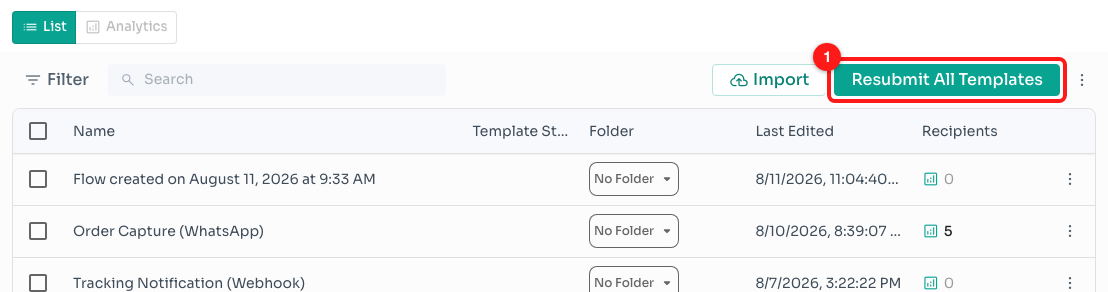
Step 1 — Resubmit All Templates on the Message Flows toolbar (1).
Step 2 — Decide how much you want to resubmit
The Resubmit templates window has two columns: your WABA channels on the left and your Message flows on the right. Together they decide the size of the job.
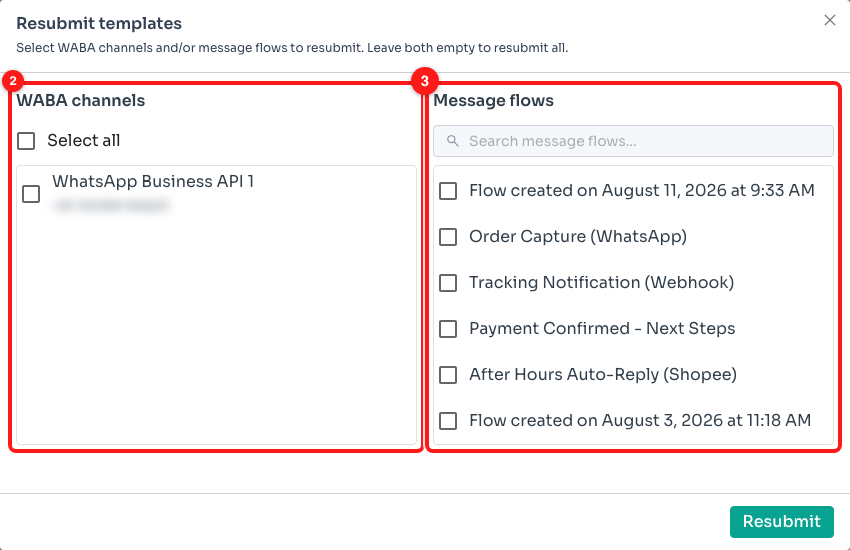
Step 2 — the channel picker (2) and the flow picker (3).
🌍 Leave both columns empty and click Resubmit to resubmit everything — every template, on every channel. That is the quickest option and the one most people want.
Step 3 — Pick the channels (optional)
Tick a channel to resubmit templates only on that channel. Select all at the top ticks every channel in the list. Each row shows the channel nickname with its phone number underneath, so you can tell two numbers apart.
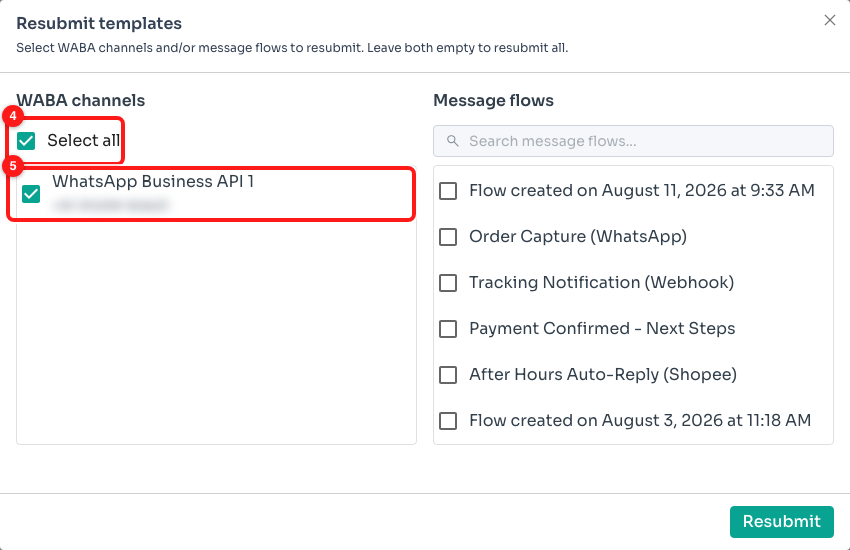
Step 3 — Select all (4) ticks every channel; you can also tick them one at a time (5). The phone number here is blurred.
ℹ️ Only connected WhatsApp Business API channels appear in this list. A channel that is disconnected, or any channel of another type, is left out — there is nothing it can submit.
Step 4 — Pick the flows (optional)
Tick the flows you want to resubmit. Use the search box to find one by name, or by the name of the folder it sits in. Flows that have a template status show it as a small chip beside the name, which is a quick way to spot the ones that were rejected. Scroll the list to load more flows.
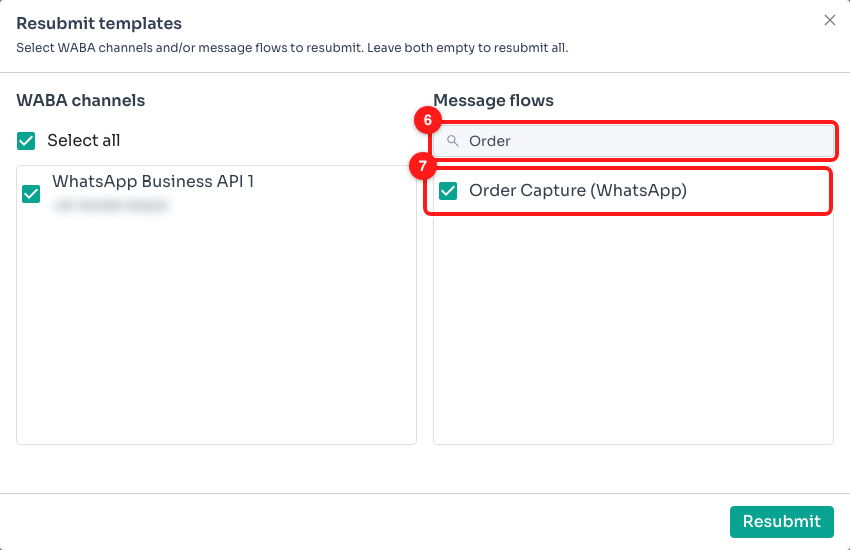
Step 4 — search narrows the list (6), then tick the flow you want (7).
Step 5 — Click Resubmit
Click Resubmit at the bottom right. The window closes and a message confirms “Request submitted. Operation will be completed in 30-45 minutes.” Nothing else is needed from you — come back to the Message Flows list later and the Template Status column will show the new results as Meta returns them.
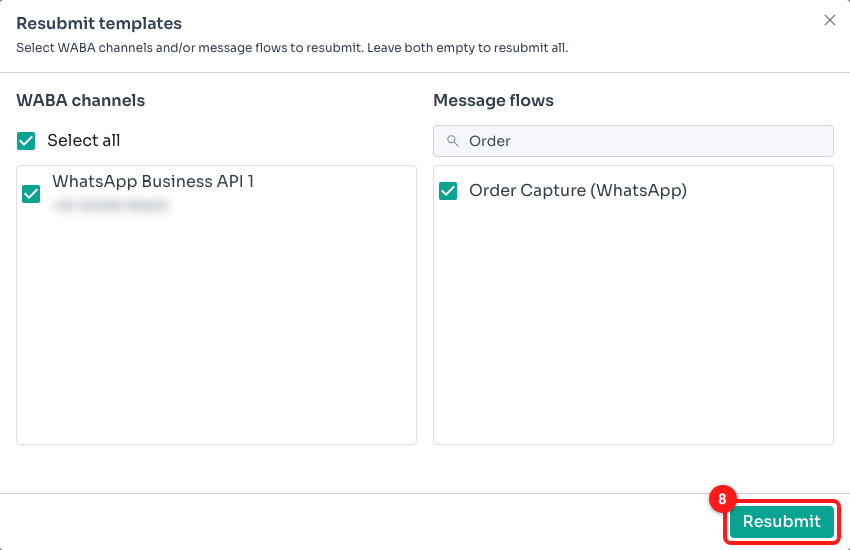
Step 5 — the Resubmit button (8). Everything ticked above is included in the job.
How this differs from resubmitting one flow
Inside a flow you resubmit through Submit for Approval, where you confirm the channel, language and category for that flow before it goes to Meta. That is the right path when you have just edited one flow and want to check those settings.
Resubmit All Templates skips those questions and reuses what each template already has, which is why it can cover hundreds of flows in one click. Use it for a bulk catch-up; use Submit for Approval when a single flow needs attention.
Troubleshooting
The button has a padlock and I cannot click it.
Your team has no WhatsApp Business API channel connected. Hovering the button explains the same thing: template resubmission is only available on a WhatsApp Business API channel. Connect one under Channels and the button becomes available.
One of my channels is missing from the list.
The list only includes WhatsApp Business API channels that are currently connected. If a channel is disconnected, reconnect it under Channels and reopen the window. QR-code WhatsApp, Instagram and Messenger channels never appear here because they do not use templates.
I cannot find a flow in the search box.
The window loads your flows in batches as you scroll, and the search looks through the ones loaded so far. Scroll the flow list down to load more, then search again. Search matches both the flow name and its folder name.
Forms are not shown in this list at all — they are not sent as WhatsApp templates.
Nothing happened after I clicked Resubmit.
The work happens in the background at Meta, so there is no progress bar to watch. Allow the full 30–45 minutes, then reload the Message Flows list and check the Template Status column. Statuses change from pending to approved or rejected as Meta reviews each one.
My templates were rejected again.
Resubmitting sends the same content back, so a template that broke Meta’s rules will be rejected again. Open the flow, fix what the rejection reason points at, save, and then resubmit. The rejection reason is shown on the flow’s template status in the Message Flows list.
Should I do this after connecting a new channel?
Yes, that is one of the best uses for it. Templates are approved per channel, so a newly connected number starts with none of yours. Tick just the new channel, leave the flow list empty, and click Resubmit to get all of your templates submitted on it.
Can I run it more than once?
Yes, there is no limit and nothing is charged. Bear in mind that a template already waiting on Meta will not move any faster because you submitted it again, so it is worth waiting out the 30–45 minutes before running it a second time.