
The Rules for Authentication (OTP) Templates
Authentication is the only WhatsApp template category allowed to carry a one-time passcode, and it is by far the strictest: no links, no media, no emojis, and parameters capped at 15 characters. Here are the seven rules, the card ChatDaddy shows you when Meta rejects one, and how to submit an OTP template that passes first time.
Also searched as: The Rules for Authentication (OTP) Templates, Open Submit for Approval on the flow, Choose the channel and the language, Set the category to Authentication, Pick the nodes and submit, The seven rules, and the card each one gives you, Rule 1 — Only an Authentication template can send a passcode, Rule 2 — No links, Rule 3 — No media, Rule 4 — No emojis, Rule 5 — Parameters are capped at 15 characters, Rule 6 — One-tap autofill is Android-only, Rule 7 — Zero-tap needs both fallback buttons, What ChatDaddy checks before it submits, Rules
If you send login codes, delivery PINs or any other one-time passcode over WhatsApp, that message has to go out as an Authentication template. It is the only one of Meta's three categories permitted to carry a passcode — and because passcode messages are a favourite target for scammers, Meta polices it far harder than Marketing or Utility.
This article is for anyone submitting an OTP template on a WhatsApp Business API channel. It covers the seven rules Meta applies, what each rejection card in ChatDaddy is telling you, and the order to do things in so you are not waiting on a second review.
🔐 An authentication template is plain text and a passcode, and nothing else. No links, no image or document header, no emojis, and every parameter capped at 15 characters. If your draft has any of those in it, it will come back rejected — so take them out before you submit, not after.
Step-by-step
Step 1 — Open Submit for Approval on the flow
Go to Automation → Message Flows and open the flow that sends the passcode. In the toolbar at the top right, click the … button and choose Submit for Approval. If the option is locked, this team has no WhatsApp Business API channel connected yet — clicking it takes you to the connection screen, because template approval only exists on API channels.
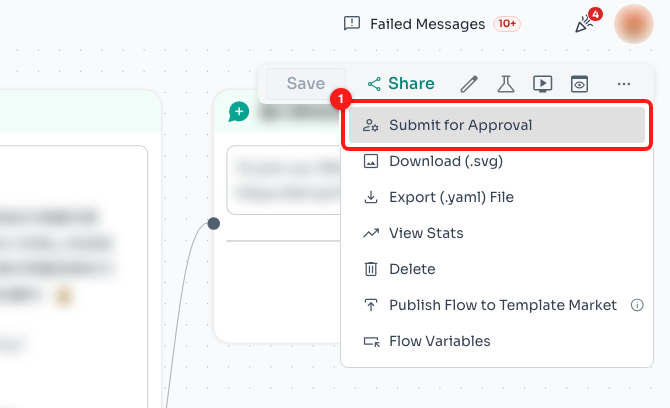
Step 1 — Submit for Approval (1) in the flow options menu. The flow's own message content behind the menu has been blurred for this screenshot.
Step 2 — Choose the channel and the language
Pick the channel or channels the template has to run on (1). Approvals are held per WhatsApp Business account, so a template approved on one number is not approved on another — if the flow serves three numbers, tick all three here. Then set the language (2). As the panel says, Meta requires a separate approval per language, so an English and a Chinese version of the same passcode message are two submissions, not one.
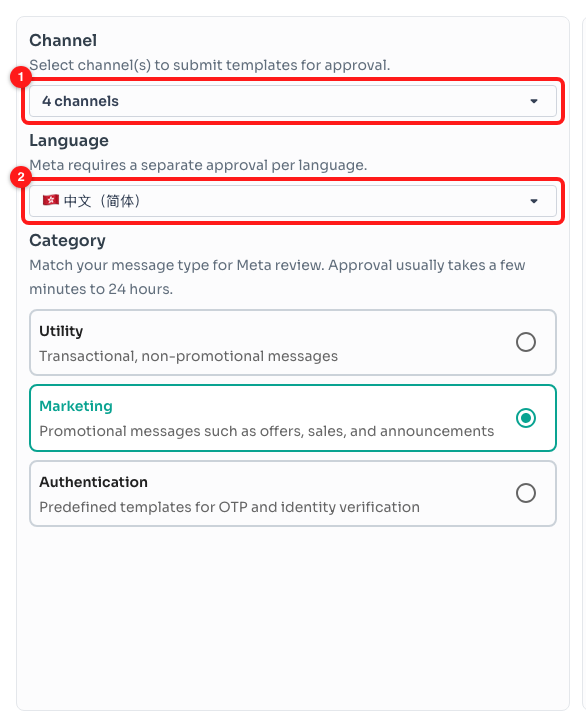
Step 2 — the channel picker (1) and the language picker (2) in the Submit for Approval panel.
Step 3 — Set the category to Authentication
Three categories are offered: Utility for transactional, non-promotional messages, Marketing for offers and announcements, and Authentication for OTP and identity verification. Choose Authentication (1). This is the single most common reason an OTP template is refused — a passcode submitted under Marketing or Utility is rejected on category grounds no matter how well the text is written.
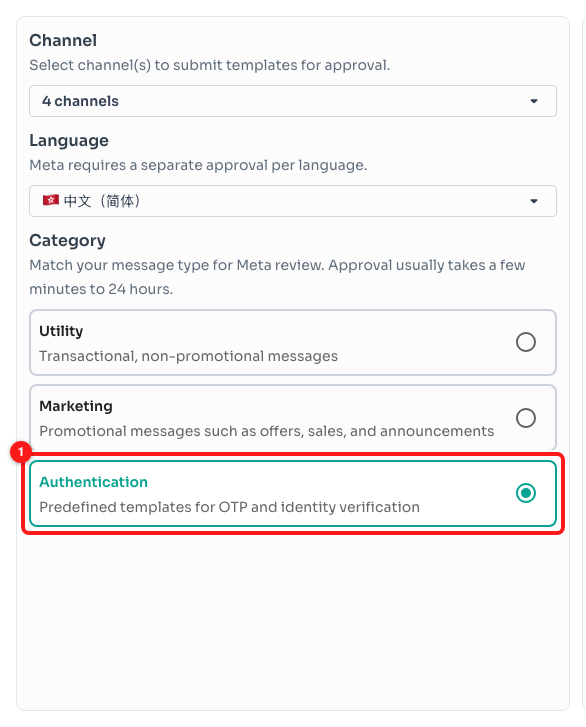
Step 3 — the Authentication category selected (1). Note the panel's own reminder that approval usually takes a few minutes and up to 24 hours.
Step 4 — Pick the nodes and submit
The right-hand side lists every message node in the flow with its status on each channel, and counts them for you (1): Rejected, Approved, Pending and Not submitted. Tick the nodes you want reviewed (2) — Select all rejected and Select all pending are there for when a flow has a lot of them — then click Submit. The nodes move to Pending while Meta reviews, and the flow can send once they read Approved.
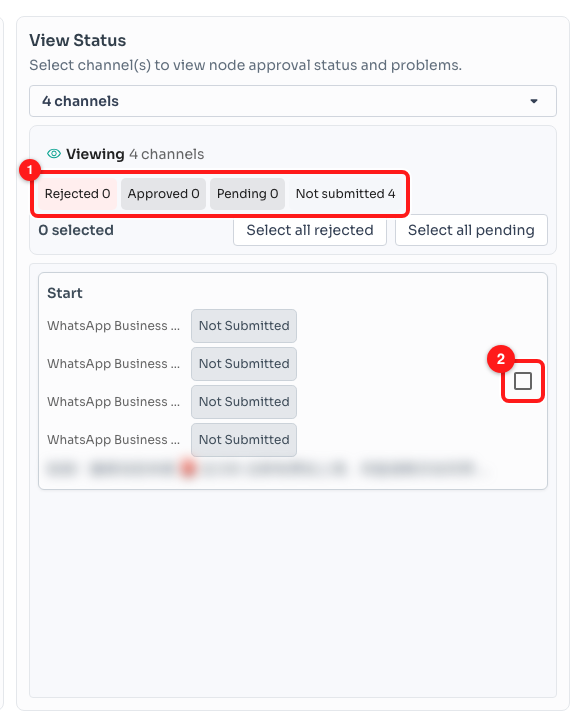
Step 4 — the per-status counters (1) and a node's selection tick box (2). The node's message preview has been blurred for this screenshot.
The seven rules, and the card each one gives you
When Meta refuses an authentication template, ChatDaddy does not just repeat Meta's sentence at you — it recognises which of the seven rules you tripped and shows the matching card. You will find it in three places: under a Rejected node in the Submit for Approval panel (click Show detail), next to the Rejected chip on that same node, and on the Template Status column of the Message Flows list when you hover a rejected flow.
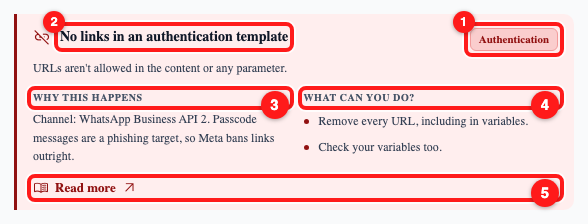
Every one of the seven cards has this shape: the Authentication badge (1), the rule in one line (2), why the rule exists (3), what to change (4) and a link to Meta's own reference (5).
- The Authentication badge — this card is about the authentication ruleset, not a general template problem.
- The rule — which of the seven you broke, in one line.
- Why this happens — the reason Meta has the rule, prefixed with the channel the rejection came from. That prefix matters when a flow is submitted to several numbers: only one of them may have been refused.
- What can you do? — the change to make, usually one or two edits.
- Read more — Meta's own authentication-template documentation.
Rule 1 — Only an Authentication template can send a passcode
Meta reserves passcodes for this category alone. Send the same text under Marketing or Utility and it is rejected, which is why Step 3 above matters so much. The card's second suggestion is the shortcut most teams end up taking: start from Meta's Template Library, where the authentication templates are pre-written to pass.
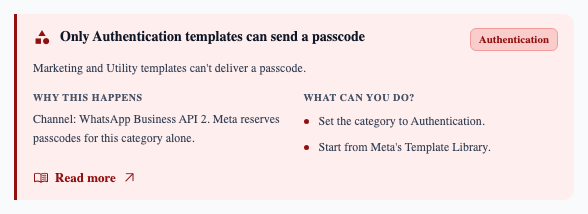
“Only Authentication templates can send a passcode” — the category was wrong, not the wording.
Rule 2 — No links
No URLs at all: not in the body, not in a footer, not hidden inside a variable's example value. Passcode messages are a phishing target, so Meta bans links outright rather than judging them case by case. A tracking link or a “not you? tap here” line is enough to fail the review.
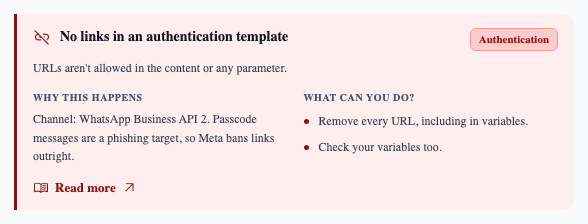
“No links in an authentication template” — check your variables as well as the body text.
Rule 3 — No media
An authentication template cannot have an image, video or document header. Plain text only — a logo at the top of a passcode message is exactly what a convincing fake would use, so Meta does not allow one. A plain text header, or no header, is fine.
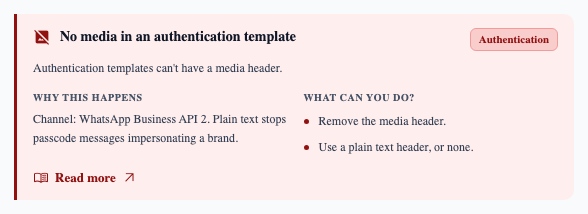
“No media in an authentication template” — remove the media header and resubmit.
Rule 4 — No emojis
Anywhere in the template: body, footer, buttons, and the example values you give for your variables. Emojis can be used to make a passcode look like it came from a brand it did not, so the whole template has to stay plain.
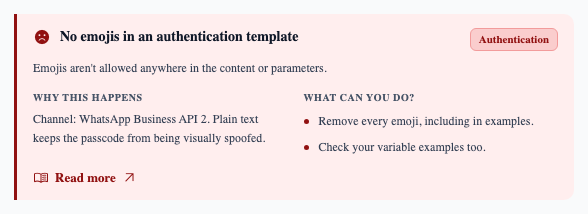
“No emojis in an authentication template” — the variable examples count too.
Rule 5 — Parameters are capped at 15 characters
The value that fills a placeholder in an authentication template can be 15 characters at most. Anything longer is refused outright — it is not shortened for you and the message is not sent. Passcodes are comfortably inside that limit; what usually breaks it is someone passing a name, an order reference or a URL through the same template. If you need longer text, it belongs in the fixed body wording, not in a parameter.
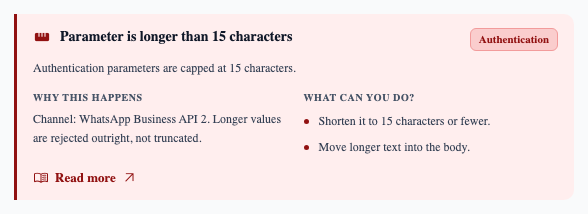
“Parameter is longer than 15 characters” — longer values are rejected, not truncated.
Rule 6 — One-tap autofill is Android-only
A one-tap autofill button lets an Android user drop the code straight into your app. It relies on an Android-specific handshake that iOS does not offer, so on an iPhone the button quietly becomes a copy-code button instead. Always add a copy-code button alongside it, and if autofill is not working on Android either, check the app signature hash on the button — that is what pairs the message with your app.
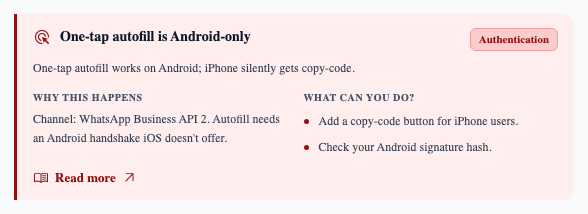
“One-tap autofill is Android-only” — iPhone users need the copy-code fallback.
Rule 7 — Zero-tap needs both fallback buttons
Zero-tap goes further still: the code is handed to your app without the user touching anything. It is also Android-only, so Meta will not approve a zero-tap template unless it also carries a one-tap autofill button and a copy-code button for everyone else. You do not turn zero-tap off to fix this — the fallbacks sit alongside it.
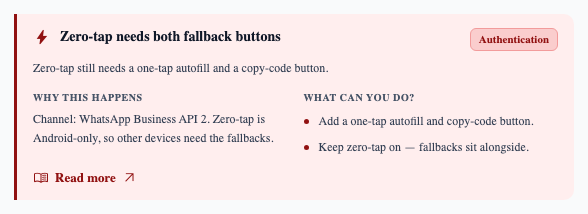
“Zero-tap needs both fallback buttons” — keep zero-tap on and add the two fallbacks.
What ChatDaddy checks before it submits
Once the category is set to Authentication, ChatDaddy runs its own check on each selected node before anything reaches Meta. If one of these trips, the submission stops, a red message names the node and the problem, and nothing is sent for review — so a failed check costs you nothing but a moment.
- Anything that looks like a link in the body —
http://,https://,www., or a.com,.orgor.netaddress. - Emojis in the body.
- A variable longer than 15 characters between the
{{and}}. - A body over 1,024 characters, which Meta caps for every category, not just this one.
#,$or%inside a variable.- An empty body — a template that is only a placeholder gets rejected as unclear.
It is a safety net, not a guarantee: it reads the text in your flow, while Meta also reviews the header, the buttons and the example values you supply. The seven rules above are still the list to work from.
Frequently asked questions
Can I just send the passcode from a Utility template instead?
No. Meta reserves one-time passcodes for the Authentication category, and a Utility or Marketing template carrying one is rejected on category grounds. There is no setting in ChatDaddy that changes this — it is Meta's rule.
How long does approval take?
Usually a few minutes, and up to 24 hours at the outside — the same as any other template. The node sits on Pending in the Submit for Approval panel while you wait, and the flow cannot send that message until it reads Approved.
The template was approved on one number but rejected on another. Why?
Approvals are held per WhatsApp Business account, so every channel reviews the template separately. The Why this happens line on the rejection card starts with the channel name for exactly this reason — it tells you which number refused it. Fix the template, then resubmit for that channel.
My passcodes are only 6 digits. Why did the 15-character rule catch me?
Almost always because a second variable is going through the same template — a customer name, an order reference or a link. The cap applies to every parameter in the template, not just the passcode. Move the long value into the fixed body wording, or drop it.
Do I have to use one-tap or zero-tap buttons at all?
No. A copy-code button on its own is the simplest authentication template and it works on every phone. One-tap and zero-tap are Android conveniences — take them on only if you want them, and if you do, add the fallbacks Meta requires.
Is there a faster way than writing my own?
Yes, and both rejection cards for the category and the button rules point at it: start from Meta's Template Library. Its authentication templates are pre-written to satisfy all seven rules, so there is far less to get wrong.
Related articles
- How to Submit a Template for Approval
- Meta Template Categories: Marketing, Utility and Authentication
- Best Practices to Avoid a Template Message Rejection
- Step-by-Step Guide to Check a Rejection Reason
- How to Resubmit Your Template on ChatDaddy
- Understanding Flow Template Statuses on the Message Flows List