
How to Add a Second WhatsApp Business API Channel (and Set Up the New SIM)
A full walkthrough for teams that already have one WABA channel and want another number: choosing and preparing the new SIM card so the verification code actually arrives, then connecting it in ChatDaddy screen by screen.
Also searched as: add second WABA channel, additional WhatsApp number, new SIM card WhatsApp Business API, second phone number WABA, connect WhatsApp Business API, WhatsApp Manager add phone number, phone number verification code, multiple WhatsApp channels
One WhatsApp Business API channel is one phone number. The moment you want a second line — a different country, a separate sales and support number, a second brand, or a number for a new branch — you are adding a second channel, and that starts with a second phone number that WhatsApp has never seen before.
This guide covers the whole job end to end: how to pick and prepare the new SIM card, how to walk the Connect Channel flow in ChatDaddy screen by screen, what happens inside the Facebook window, and what to check once the new channel is live.
📵 The one thing that decides whether this works. The new number must not be registered on WhatsApp or WhatsApp Business as an ordinary account, and it must be able to receive a text message or a phone call from abroad. Almost every failed setup is one of those two things — not anything you did in ChatDaddy.
Part 1 · Decide which kind of "second channel" you want
There are two ways to run a second number, and they are not the same thing. It is worth choosing deliberately, but the decision is not locked in — a phone number can be migrated from one WhatsApp Business Account to another later if you change your mind.
| A brand-new WhatsApp Business Account | A second number on your existing account | |
|---|---|---|
| What it is | A separate WhatsApp Business Account (WABA) with its own number. | One more phone number added to the WABA you already use. |
| Display name | Its own — can be a completely different brand. | Its own display name per number, but one parent business. |
| Business verification | Verification sits on the business portfolio, not on the account. A new WABA created inside a portfolio you have already verified inherits that verification. You only verify again if you also create a new portfolio — a genuinely different legal entity. | Already done — the new number inherits it. |
| Message templates | Starts empty. You resubmit every template. | Shares the templates you already have approved. |
| Messaging limit & quality | Messaging limits also sit on the business portfolio and are shared by every number in it — so a new account inside your existing portfolio starts on the limit you have already earned. Only a brand-new portfolio starts at the bottom (250). | Same portfolio, same shared limit — the new number starts on the limit you have already earned. |
| Best for | A different company, a different brand, or a number you may sell or hand over. | Another line for the same business — a second country, a support line, a new branch. |
🧭 Not sure? Pick the second option. As long as you stay inside the same business portfolio, verification and messaging limits come along either way — the real difference is templates. A second number on your existing account keeps the templates you have already had approved; a new account means resubmitting every one of them. Part 4 covers that route.
🗂️ The level that actually matters is the portfolio. Business verification, messaging limits and the cap on how many numbers you may hold are all properties of the business portfolio that owns the account — not of the WhatsApp Business Account itself. Quality rating and display name are the things genuinely tracked per number.
Part 2 · Set up the new SIM card
Do this before you open ChatDaddy. Meta sends a six-digit code to the number during setup and gives you a few minutes to enter it; if the SIM is not ready and in your hand at that moment, the attempt fails and you have to wait before you can try again.
Step 1 — Choose a number that qualifies
Any number works as long as you can receive a code on it and nobody is using it on WhatsApp already.
- A new prepaid or postpaid mobile SIM is the safest choice and what most teams use.
- A landline or office number works too — choose the voice call option when the code is sent, and make sure someone can pick it up.
- A virtual or VoIP number (from a cloud telephony provider) can work, but many block international or automated messages. Test it before you commit, and never build a channel on a number the provider can recycle.
- Never use a teammate’s personal number. Once a number is on the API it cannot also be used in the normal WhatsApp app, and the person loses their own chats.
- One number, one channel. You cannot share a number between two channels, or between the API and the WhatsApp Business app.
Step 2 — Buy the SIM and register it properly
- Buy the SIM in the company’s name where your country allows it, not in an employee’s. It is a business asset and you will need it again every time Meta re-verifies the number.
- Complete whatever ID registration your telco requires. In many countries an unregistered prepaid SIM is cut off within days, which would take the channel down with it.
- Put it on a plan that will not expire. A prepaid line that lapses quietly is the most common way teams lose a working WABA number.
- Note the number in full international format — country code first, no leading zero. For example
+60 12 345 6789, not012 345 6789. This is exactly how you will type it later.
Step 3 — Put the SIM in a handset and confirm the number
- Insert the SIM into a spare phone, switch it on and wait for it to find the network.
- Confirm you have the right number. Most telcos have a short code that reads it back to you, or you can simply send a text from this SIM to another phone and read the sender.
- Keep this handset switched on and next to you for the whole setup. You will need it for the code.
Step 4 — Prove it can receive the code
This is the step people skip, and it is the step that fails. Meta’s code arrives from an international, automated sender — not from a normal phone. Plenty of cheap prepaid bundles block exactly that.
- Ask someone abroad, or any online service you already use, to send this SIM a verification text. If nothing arrives, call the telco and ask them to enable international and automated (A2P) SMS on the line.
- Ring the number from another phone and make sure it rings and can be answered — that is your fallback if the text never lands.
- Turn off call forwarding and voicemail on the line. If the call is diverted, the spoken code goes to a machine you cannot read.
- Check there is no spam or promotions filter on the handset quietly hiding messages from unknown senders.
Step 5 — Do not install WhatsApp on it
⛔ Do not open WhatsApp or WhatsApp Business on the new SIM to "test" it. Registering it as an ordinary account is the single most common reason the API setup is refused later.
If the number has already been used on WhatsApp — a second-hand SIM, or a number an employee used before — you must delete that WhatsApp account from inside the app first (Settings → Account → Delete my account), then give it time before using it for the API. Deleting the app is not enough; the account has to be deleted.
Step 6 — Keep the SIM alive afterwards
Once the channel is connected, day-to-day messaging runs through the API and does not touch the handset. But the number still has to exist and stay yours: Meta re-verifies numbers from time to time, and a line that quietly lapses takes the channel with it. Keep the SIM active, topped up and somewhere you can find it.
🔑 You do not need the SIM to recover a two-step verification PIN. That is reset in WhatsApp Manager with your Facebook Business login — see Part 5.
Part 3 · Connect the new channel in ChatDaddy
With the SIM ready and the handset beside you, this takes a few minutes. You need to be an admin on your ChatDaddy team and on the Meta Business portfolio you will connect to.
Step 1 — Open Channels and start a new connection
Go to Channels in the left menu. Everything you have already connected is listed here, which is also the quickest way to confirm you really are adding a new number rather than reconnecting an old one.
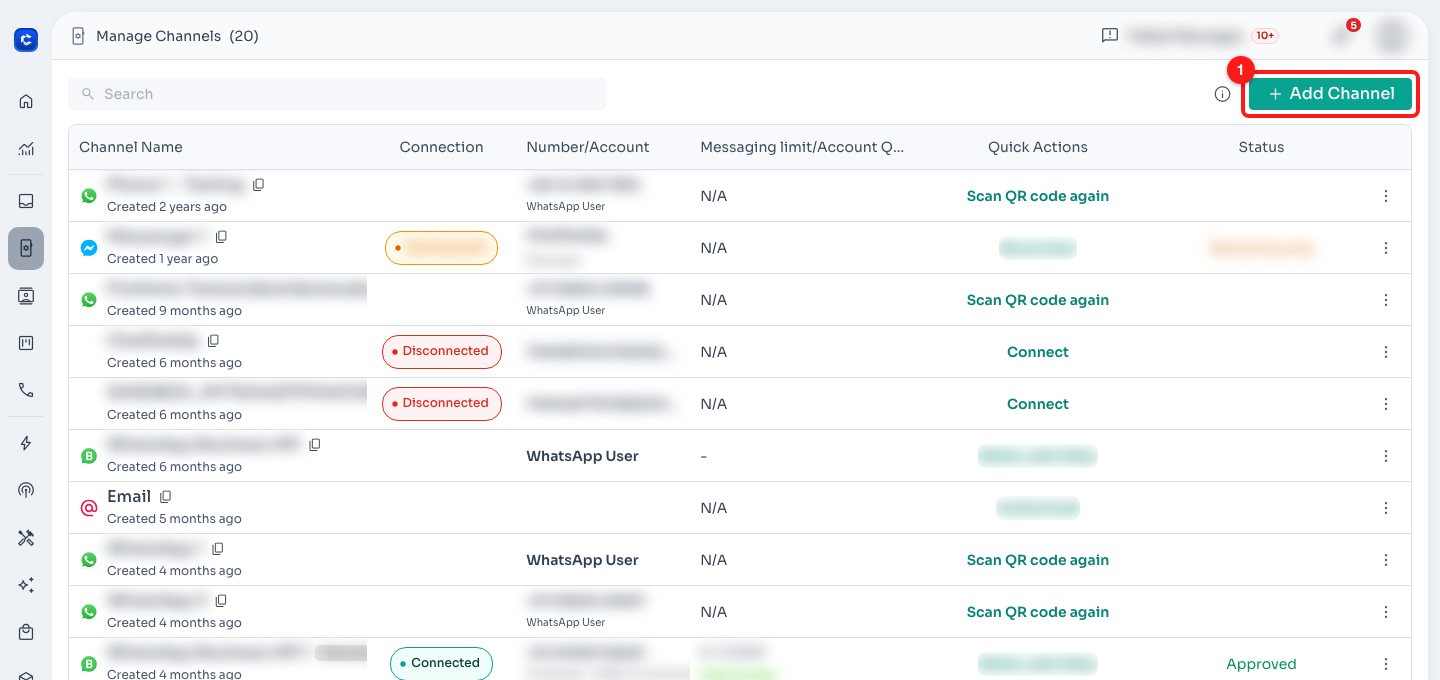
Manage Channels. (1) + Add Channel — top right. Existing channels stay connected and untouched while you add another.
Step 2 — Choose WhatsApp Business API
The Connect Channel dialog lists every channel type. Pick WhatsApp Business API (WABA) Meta Partner and click Connect Now! — not the QR integration next to it, which is the ordinary WhatsApp app.
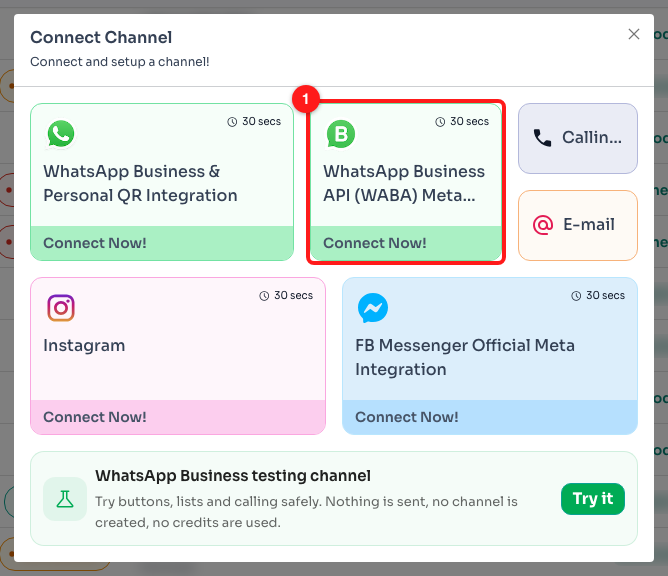
The Connect Channel dialog. (1) WhatsApp Business API (WABA) Meta Partner. The card to its left is the QR integration for the normal WhatsApp app — a different product.
Step 3 — Read the summary and acknowledge it
ChatDaddy shows what you are signing up to: the advantages, the conversation window, what the channel is good for, and the fact that there are two costs — the ChatDaddy channel fee and Meta’s own per-message fee. Tick the box to continue.
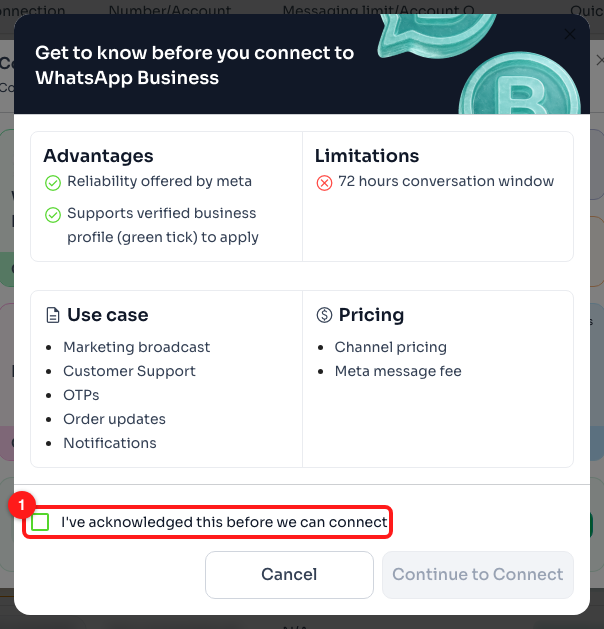
"Get to know before you connect to WhatsApp Business". (1) Tick "I’ve acknowledged this before we can connect" — Continue to Connect stays greyed out until you do.
⏱️ The window is 24 hours, not 72. The card in this dialog still reads 72 hours conversation window. When a customer messages or calls you, a 24-hour customer service window opens, and each new inbound message resets it. Inside it you can reply freely; outside it you may only send approved message templates. The 72-hour figure belonged to free-entry-point conversations under conversation-based pricing, which Meta replaced with per-message pricing on 1 July 2025.
💳 A second channel is not free. Every WhatsApp Business API channel carries a monthly cost, and the second one costs the same as the first. On a plan it counts against your plan’s channel allowance and anything above that is billed monthly from your wallet. Check your balance before you start so the connection is not rejected halfway.
Step 4 — Pick "create a new account"
Three options appear. For a new number on a new WhatsApp Business Account, choose the middle one — Create and connect a new WhatsApp Business Platform (API) account.
- Connect WhatsApp Business App (Co-existence) — for a number already running in the WhatsApp Business app that you want to keep using there too. That is a different guide.
- Create and connect a new WhatsApp Business Platform (API) account — a fresh account with your new number. This is the one.
- Connect an existing WhatsApp Business Platform (API) account — use this if you have already added the number inside Meta’s WhatsApp Manager (see Part 4), or if it sits with another provider.
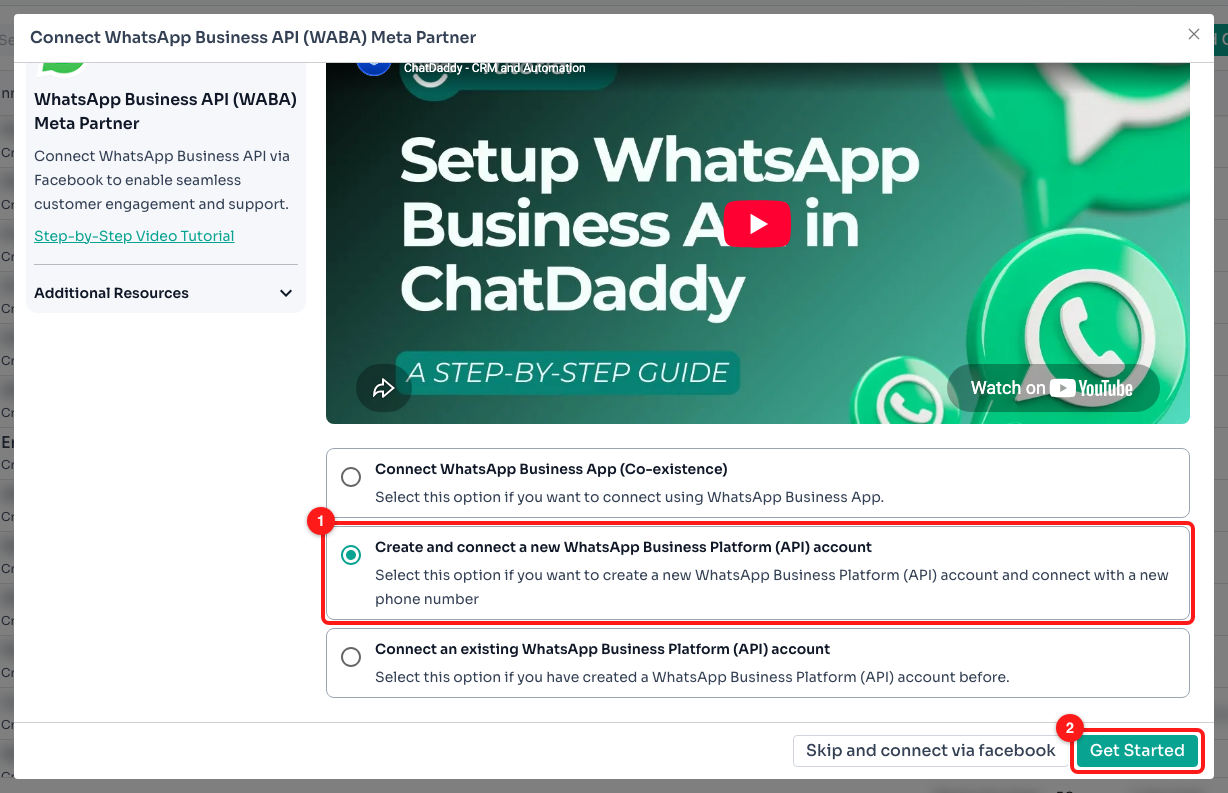
The connection-type step. (1) Create and connect a new WhatsApp Business Platform (API) account, selected. (2) Get Started.
Step 5 — Answer the eligibility check
ChatDaddy asks one question — do you have a valid phone number that can send and receive SMS? — and routes you differently depending on the answer.
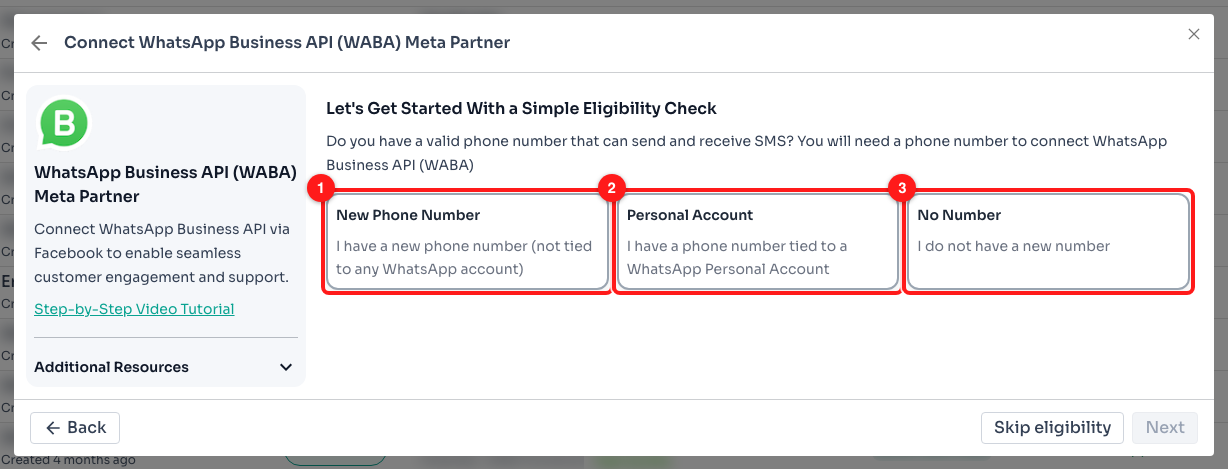
The eligibility check. (1) New Phone Number — the SIM you prepared in Part 2. (2) Personal Account — a number already on WhatsApp, which has to be freed first. (3) No Number — you still need to get one.
- New Phone Number — the SIM from Part 2, never registered on WhatsApp. Choose this and click Next.
- Personal Account — the number is already on WhatsApp. ChatDaddy will tell you to delete that account first and back up the chat history before you do, because migrating it is one-way.
- No Number — you have not got one yet. See the next step.
Step 5a — If you still need a number
Answering No Number gives you ChatDaddy’s own advice: you need a real number before you can go any further. Buy your own, and make sure it is not connected to any existing WhatsApp account — which is exactly what Part 2 was for.
🧪 Meta’s free number is not a shortcut. Meta does issue a free phone number, but it is a test number for developers — it can only message five recipients and cannot be used for production messaging. It is not a substitute for a real line, so do not build a customer-facing channel on it.
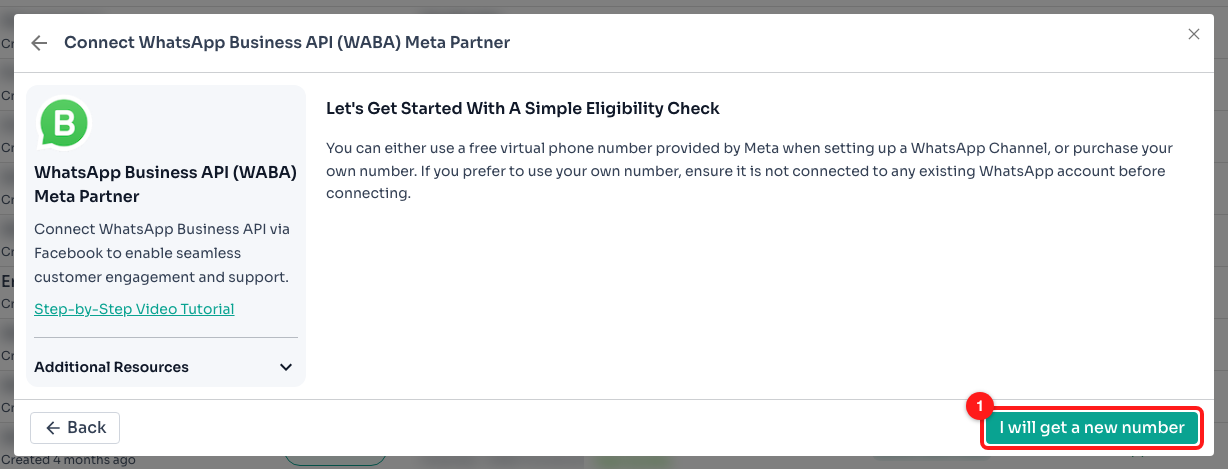
The "No Number" branch. (1) I will get a new number — takes you on to the same setup once you have one.
Step 6 — Have your company details to hand
Meta asks for these while creating the account, and the window will not wait for you to go and look them up. Have the customer-facing company name, the legal company name and the official registered address in front of you.
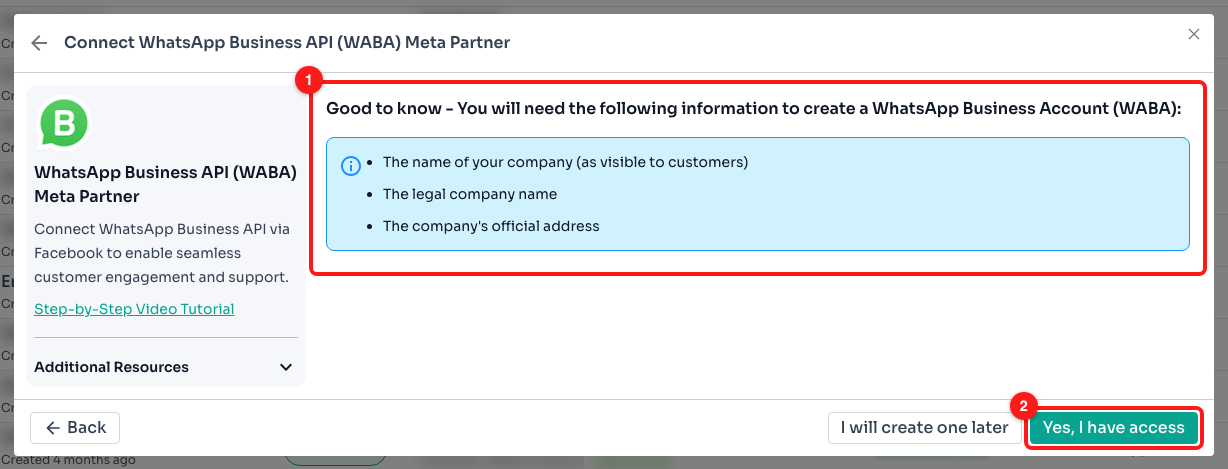
The "Good to know" step. (1) The three details Meta will ask for. (2) Yes, I have access — continue.
🏷️ The display name matters — but not immediately. This is what customers see instead of the phone number. Meta does not review it up front: a new number goes live after an automated policy compliance check, so a display name is not the usual reason a new number is refused. Review is initiated once your business verification completes, and from that point every display name change has to be approved before it can be used. Set your real trading name now so you are not renaming under review later.
Step 7 — Connect with Facebook
This is the hand-off. Clicking the button opens a Facebook window where the account is actually created; when it finishes you land back in ChatDaddy with the new channel connected.
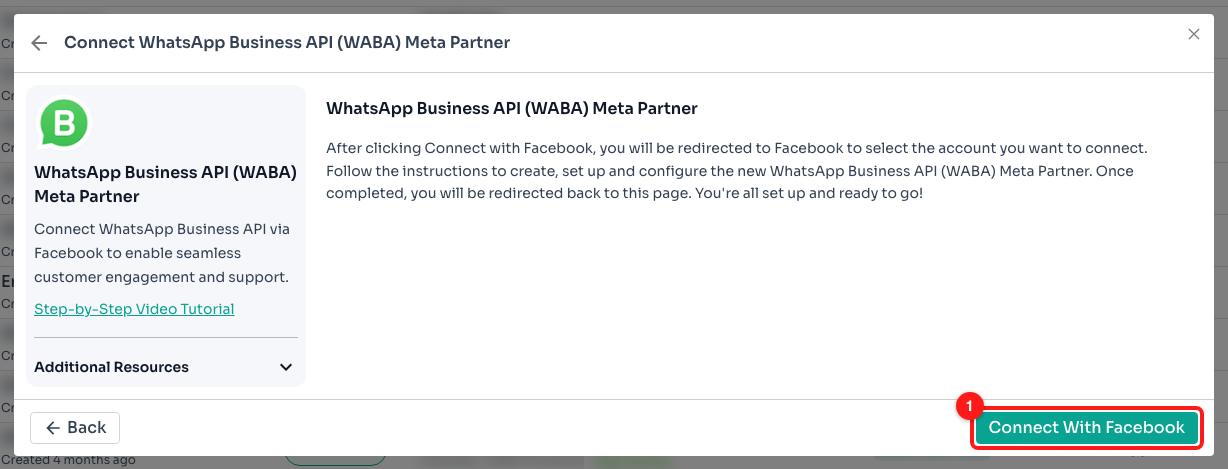
The final ChatDaddy step. (1) Connect With Facebook — opens Meta’s setup window in a pop-up.
🪟 Allow pop-ups before you click, and do not close the window. If the pop-up is blocked nothing happens at all, and closing it halfway leaves a half-created account you will have to clean up in Meta before trying again.
Inside the Facebook window, in order:
- Log in as a person who is an admin of your Meta Business portfolio.
- Select the business portfolio the new number belongs to, or create one.
- Create a new WhatsApp Business Account, or pick the existing one if you are adding the number to it.
- Enter the display name, business category and description for the new number.
- Type the new phone number in full international format and choose how you want the code: text message or phone call.
- Read the six-digit code off the handset with the new SIM and enter it. If it does not arrive within a minute or two, use the voice-call option instead of requesting another text.
- Finish the remaining prompts and let the window close by itself. ChatDaddy picks the new channel up automatically.
Step 8 — Give the new channel a name your team will recognise
Two WABA channels look identical in the Inbox, in broadcasts and in every flow unless you name them. Do this immediately, while you still remember which number is which. Open the ⋮ menu on the new channel’s row.
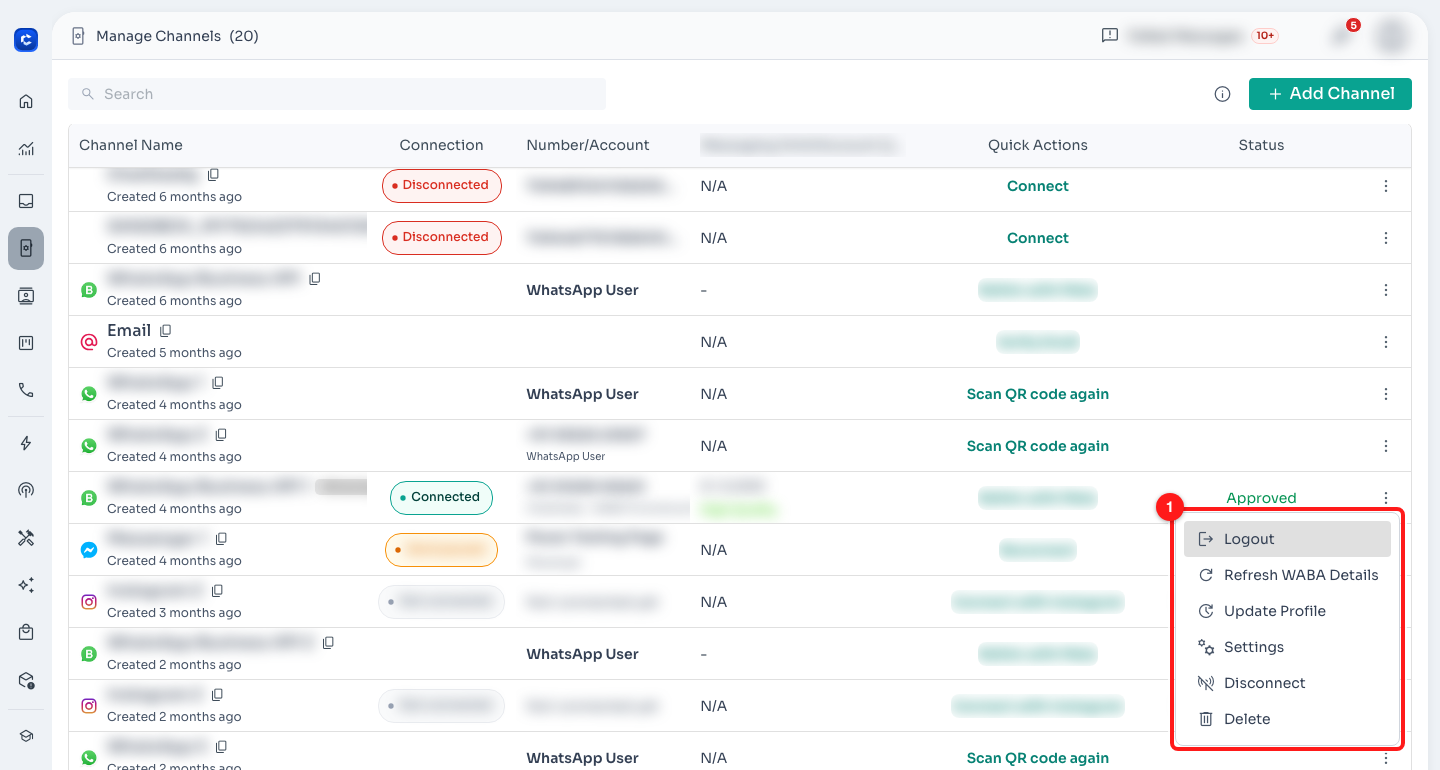
The per-channel actions on a live WABA row. (1) The menu — Update Profile changes what customers see, Settings is where the channel gets its internal name.
Choose Settings, then click the pencil next to the channel name at the top and type something a teammate would understand — "Support · Malaysia", "Sales · +65", and so on. While you are here, set the auto-assign rules so chats arriving on the new number reach the right people.
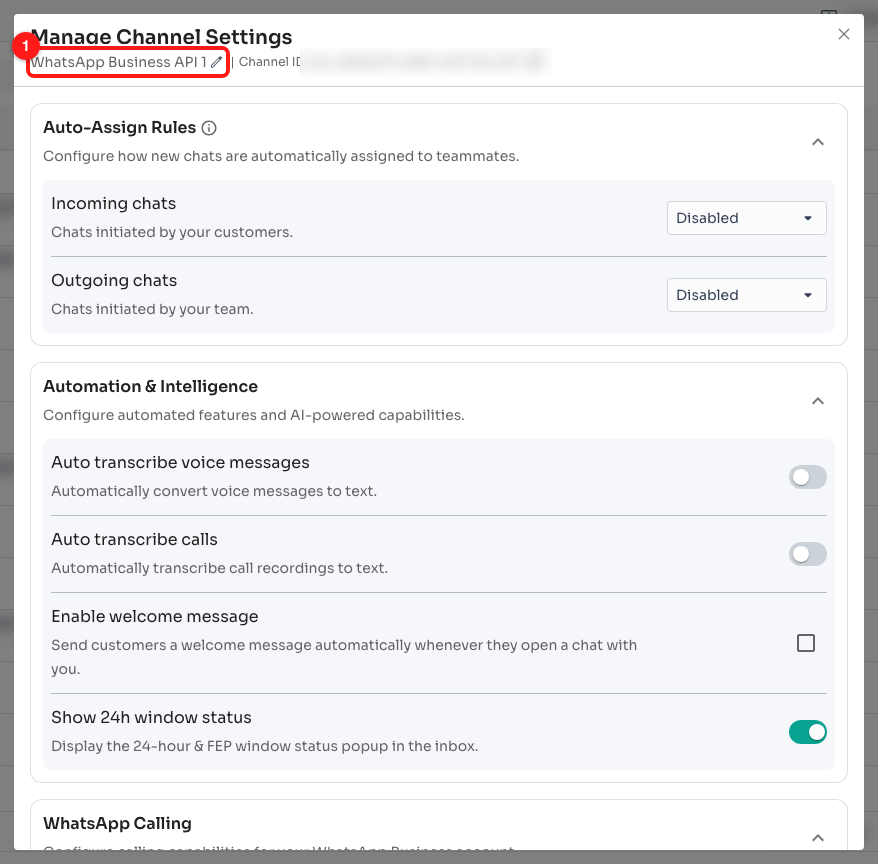
Manage Channel Settings. (1) The channel name and its edit pencil — this is the label your team sees everywhere else in ChatDaddy.
Part 4 · The other route — a second number on the same account
If the new line belongs to the same business, adding it to the WhatsApp Business Account you already have is usually better: it inherits your approved templates, and — like any account in the same portfolio — your business verification and your messaging limits. You do that on Meta’s side first, then connect it in ChatDaddy.
- Open Meta Business Suite → WhatsApp Manager → Account tools → Phone numbers.
- Click Add phone number and fill in the display name, category and description for the new line.
- Enter the new number, choose text message or phone call, and enter the six-digit code from the handset.
- Back in ChatDaddy, run Part 3 again but choose Connect an existing WhatsApp Business Platform (API) account at Step 4, then pick the number you just added.
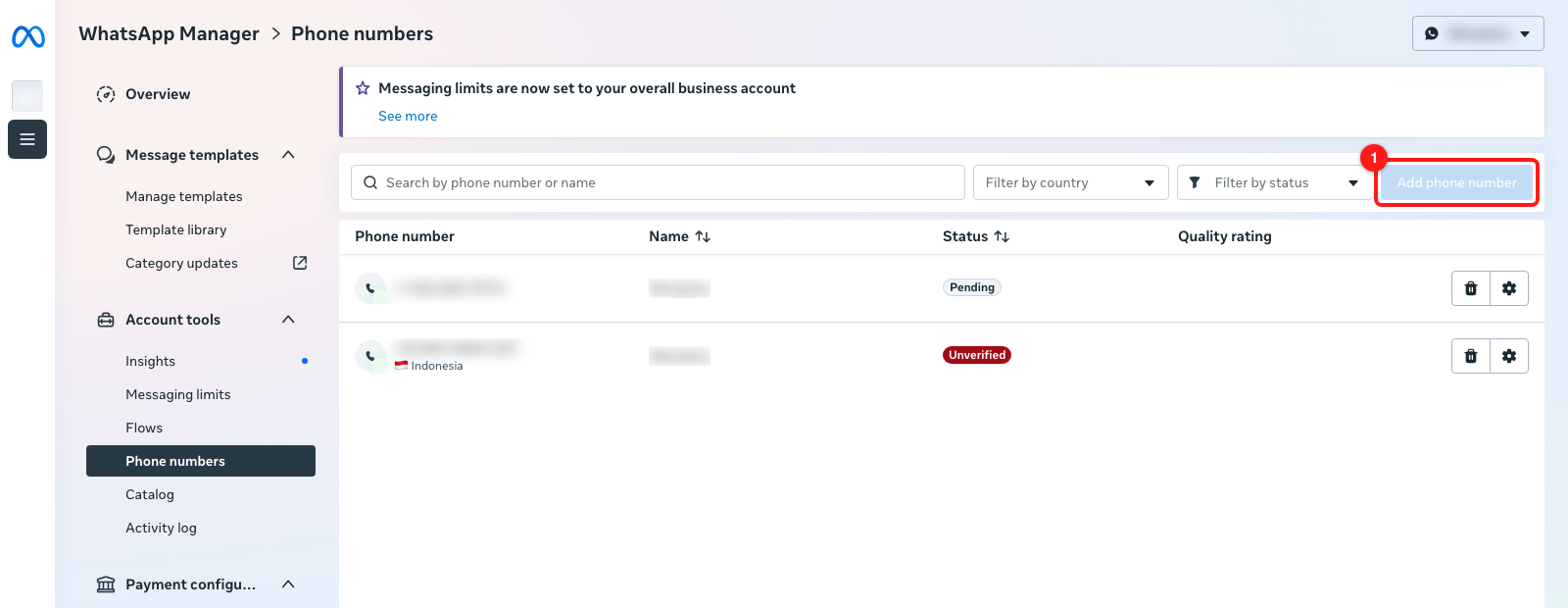
WhatsApp Manager → Phone numbers, with two numbers on one business account. (1) Add phone number. A number sits at Pending or Unverified until its code has been entered.
If "Add phone number" is greyed out
Meta caps how many numbers an unverified business may hold. Hover the button and it tells you the cap you have hit; the banner at the top of the same page tells you the fix — verify your business. Until that is done, no amount of clicking in ChatDaddy will add a third number.
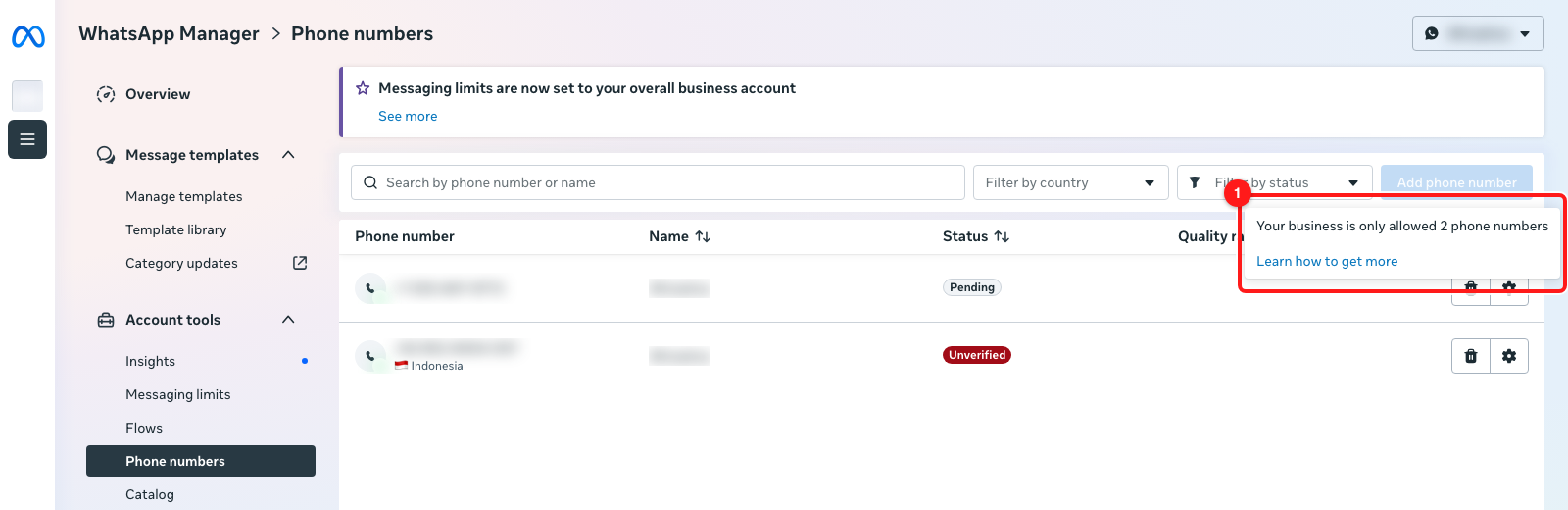
The tooltip on a disabled Add phone number button. (1) "Your business is only allowed 2 phone numbers" — business verification raises it.
Part 5 · After the channel is live
A new number is not a copy of your old one. Work through this before you point customers at it.
- Templates. A brand-new business account starts with none — resubmit every template you rely on. A number added to your existing account already has them.
- Messaging limit. The limit sits on your business portfolio and is shared by every number in it, so a new number inside a portfolio you already use starts on the limit you have already earned. A brand-new portfolio is the one that starts at 250 and grows with use and good quality — if that is your situation, do not plan a large broadcast on day one.
- Quality rating. Each number is rated on its own. One number behaving badly can drag the whole portfolio down: if its quality falls to low the number is Flagged, and if it does not recover within seven days the shared messaging limit drops a tier. The new line needs the same care as the old one.
- Auto-assign rules. Set them per channel, in Manage Channel Settings, or chats on the new number will sit unassigned.
- Flows and broadcasts. Anything that sends on a specific channel needs the new one selecting; it is not added automatically.
- Two-step verification PIN. Store it somewhere the team can find it. If it is lost you can set a new one in WhatsApp Manager → your number → Settings → Two-step verification → Change PIN. You do not need the SIM for this, but you do need WhatsApp Manager access, because there is no way to do it through the API.
Troubleshooting
The verification code never arrives
Nine times out of ten the line cannot receive international or automated messages. Ask your telco to enable them, and in the meantime choose the phone call option instead — the code is read out loud.
Also check: the handset has signal, call forwarding and voicemail are off, and no spam filter is hiding the message. Requesting code after code makes it worse — Meta rate-limits repeated attempts, so change something before you try again.
Meta says the number is already registered on WhatsApp
The number still has an ordinary WhatsApp or WhatsApp Business account on it. Open that app on the SIM, back up anything you need, then go to Settings → Account → Delete my account. Uninstalling the app does not release the number.
A recently deleted number also needs a little time before Meta will accept it on the API. If it is refused immediately after deletion, wait and try again rather than raising a ticket.
The Facebook window opens and closes, or nothing happens at all
Nothing at all is almost always a blocked pop-up. Allow pop-ups for ChatDaddy and click Connect With Facebook again.
If it opens and then closes early, log in to Meta Business Suite and check whether a half-created WhatsApp Business Account is sitting there. Finish or remove it before starting again, or the second attempt will collide with it.
Make sure the Facebook account you are logged into is an admin of the business portfolio. A viewer or an employee role cannot create the account.
The channel connected but shows Pending or Unverified
These are two different things, and neither of them is about the display name. Pending is the number's own registration status — it has been added to the account but has not finished registering. Unverified means it has not completed its six-digit code check.
Display name review is tracked separately from both, and surfaces as its own name-review status rather than as Pending.
Open WhatsApp Manager → Phone numbers and look at the number’s own status. Finish whatever it asks for there; ChatDaddy reflects Meta’s state, it does not control it. You can force a refresh from the channel’s ⋮ menu with Refresh WABA Details.
Can I move my existing number to the second channel instead of buying a SIM?
You can, but it is a migration rather than an addition, and it is one-way: while the number is on the API it can no longer be used in the normal WhatsApp app on a phone. Back up the chat history first — it does not come with the number.
If the point is to keep answering on the phone as well, look at WhatsApp Coexistence instead, which is designed for exactly that.
Do I need a separate SIM for every channel?
You need a separate number for every channel. Whether that number comes from a physical SIM, a landline or a virtual provider is up to you — but two channels can never share one number, and a number on the API cannot also be in the WhatsApp app.
How many numbers can we have in total?
Meta sets the ceiling, not ChatDaddy. An unverified business is capped at a small number of lines — the tooltip on the disabled Add phone number button tells you your current cap. Completing business verification raises it.
Related articles
- How to create, verify and connect your WhatsApp Business API to ChatDaddy
- How to verify your business on Meta
- Step-by-step guide: connect WhatsApp App Coexistence on ChatDaddy
- How much each channel costs in credits before you connect
- How to manage channel settings and the Danger Zone
- How to change your WhatsApp Business display name
- How to submit a template for approval
- WhatsApp verification guide: the types of Meta verification